

📝 Budgets
Estimated time: 8 minutes
Level: 🟢 Easy
Offers for customers before selling
🎯 What is a budget?
A quote (or quote/offer) is a document that you give to the client with:
- What products/services do you offer?
- At what price
- How long is it valid for?
Example:
Client: "How much does it cost me to maintain my pool for a year?"
You: Create a budget with 52 visits + products = €2,400/year
Client receives it by email, approves it, and it becomes a contract.
📝 STEP 1: Create budget
How:
- Go to Sales → Quotes
- Press "New Quote"
- Select the client
- Add products/services
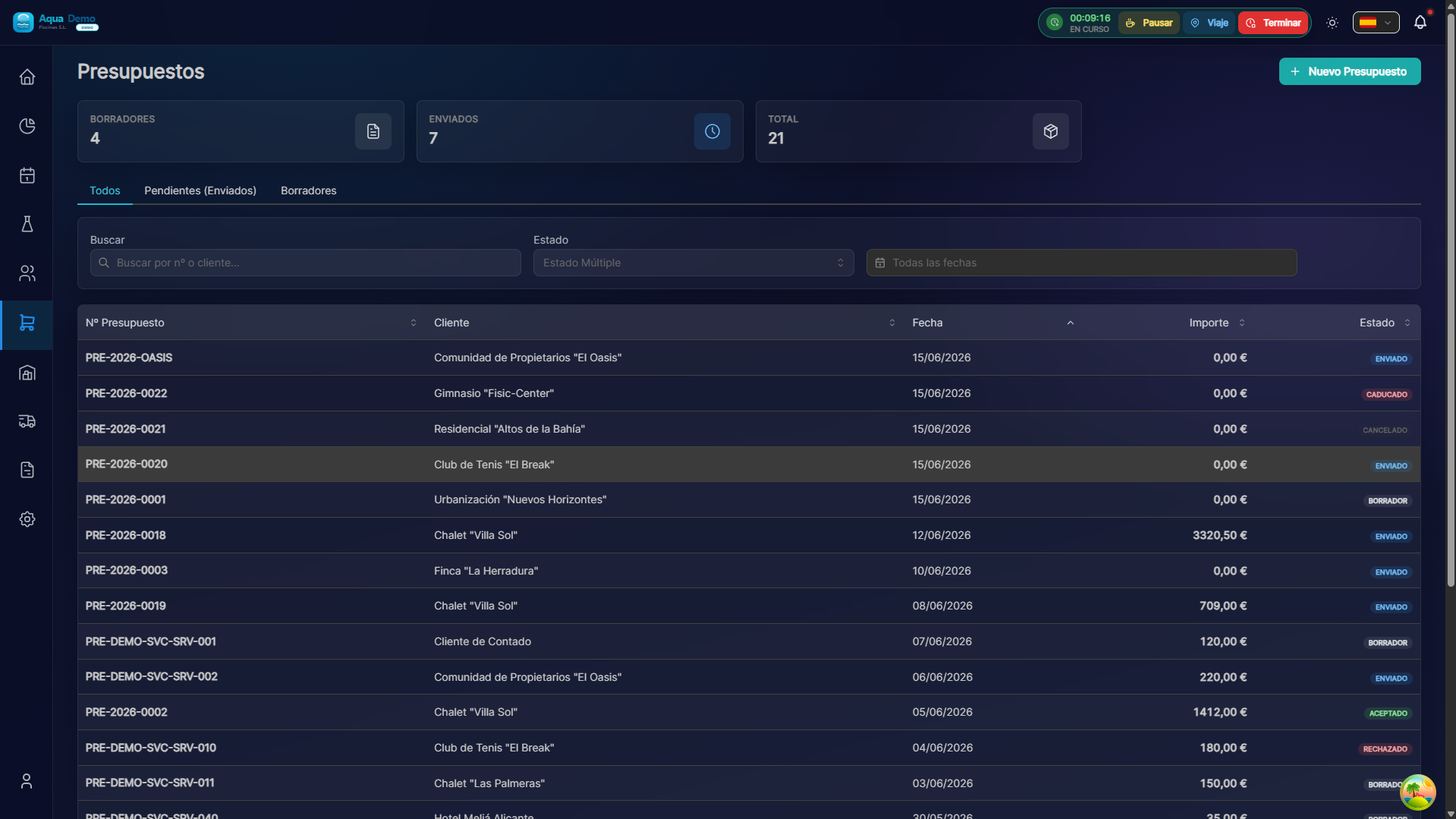
Captura con datos demo AquaDemo.Capture with AquaDemo demo data.
📊 Budget statuses
| Status | Meaning | Color |
|---|---|---|
🟡 Draft (PENDING) | You are creating it, the client does not see it | Gray |
🟠 Sent (SENT) | Visible in portal; customer can sign | Blue |
🟢 Accepted (ACCEPTED) | Client signed (portal or manual) | Green |
🔴 Rejected (REJECTED) | Client rejected on portal | Red |
⚪ Expired (EXPIRED) | Validity date passed | Orange |
📧 STEP 2: Send to customer
From the budget:
- Check that everything is correct
- Press "Send by Email"
- The system generates PDF automatically
- Client receives email with:
- Subject: "Pool maintenance budget - PoolControl"
- Body: Professional text with your data
- Attached: PDF of the budget
The email that the client receives:
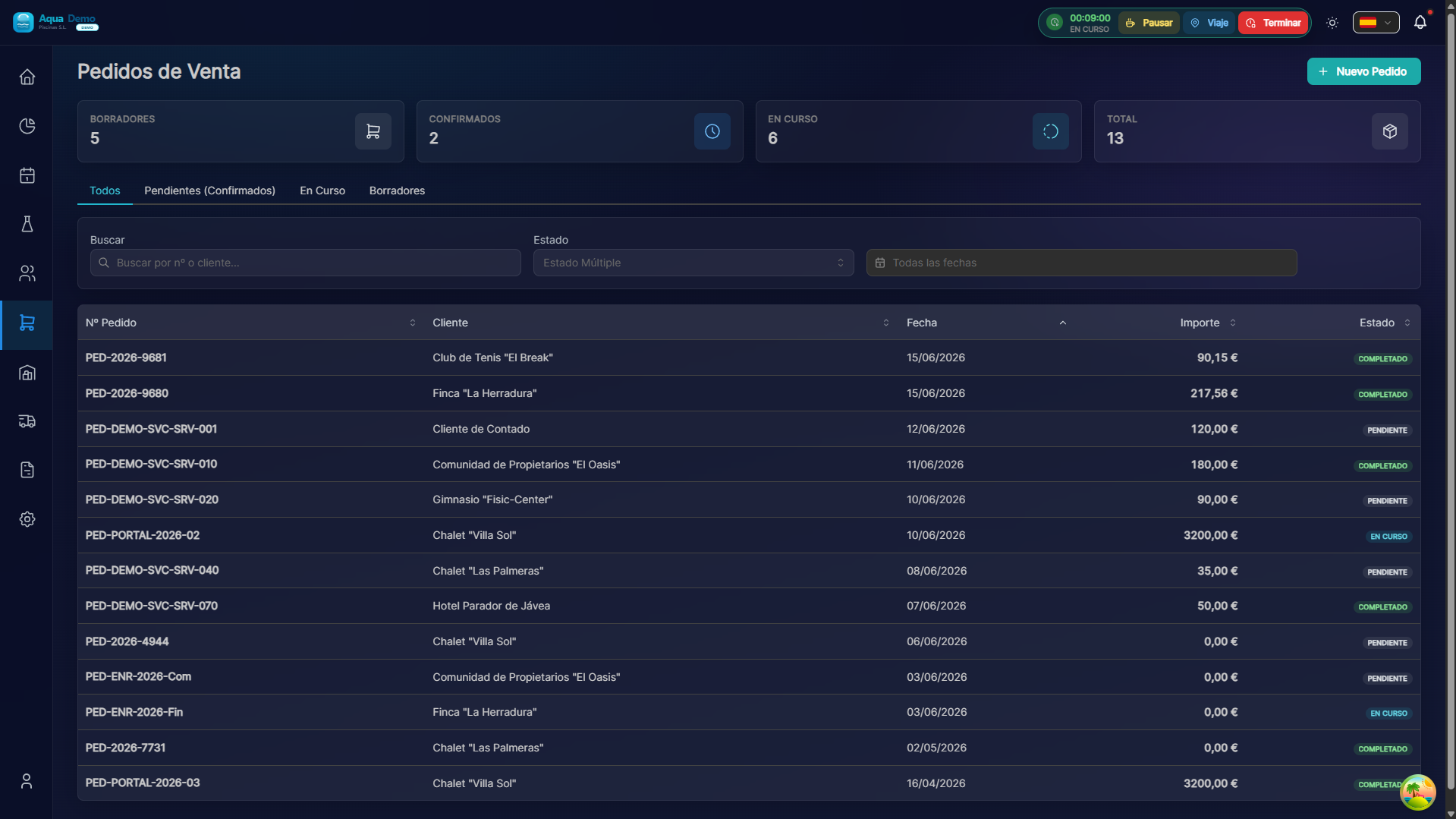
Captura con datos demo AquaDemo.Capture with AquaDemo demo data.Capture with demo manager user (AquaDemo data).
🌐 Acceptance from the Client Portal (2.0)
If the client has an active portal and you send the quote to Sent status:
- Customer views document in
/portal/quotes, downloads PDF and can sign. - By accepting:
clientSignatureUrland signature date are saved- ADMIN and MANAGER receive notification in the bell (
QUOTE_ACCEPTED) - If Create order upon acceptance is active, the order is generated automatically
- When rejecting:
QUOTE_REJECTEDnotification to the same roles.
In the budget sheet (ERP) you will see:
- Badge Accepted via Client Portal
- Signature preview
- Link to the generated order (avoid duplicating "Generate order")
| Budget type | After accepting + auto-order |
|---|---|
| PROJECT | Order PENDING → Loading Dock (planning) |
| PRODUCT_SALE | Order for logistics/warehouse |
| CONTRACT | Order + update monthly customer fee |
Configuration: Company → Customer Portal. More detail: Quotes en el portal.
💡 Tips to sell more
Tip 1: Include options
Not one, but three budgets:
- Basic: Only what is necessary
- Standard: Recommended
- Premium: With extras
Tip 2: Short validity
30 days creates urgency. "No obligation, valid only this month."
Tip 3: Follow Up
If 3 days go by and they don't respond, call them. Many sales are lost by not following through.
Tip 4: Photos
Include photos of the client's pool in the estimate (they look professional).
❓ Frequently asked questions
"Can I duplicate a quote?"
Yes, "Clone" saves you time if it is similar to another.
"Can the client approve online?"
Yes, with active portal and Accept quotes option enabled. Sign on screen and accept; you receive notification instantly.
"What happens if I change prices after approving?"
You shouldn't. Once approved, create order/invoice with those prices.
"Can estimates be made in the technician's app?"
Yes, from your mobile you can create budgets in the pool.
✅ Perfect Budget Checklist
- [ ] Selected correct client
- [ ] Correct pool (if applicable)
- [ ] All detailed services
- [ ] Clear prices (with/without VAT indicated)
- [ ] Specified payment terms
- [ ] Validity date included
- [ ] Contact information for your company
- [ ] Reviewed before shipping