

Access
Business → New Quick Sale (POS) — opens the Operation Canvas floating panel (not a fixed URL). Requires billing module and POS permissions.
🛒 Point of Sale (POS)
Estimated time: 10 minutes
Level: 🟢 Easy
You will use it every time I sell something
🎯 What is POS?
The POS (Point of Sale Terminal) is the screen to sell products to customers who come to your store.
Example of use:
A customer enters:
- "Good morning, I want 5 kilos of chlorine"
- You look for it at the POS
- Add to cart
- You charge €25
- Print ticket
- Ready in 30 seconds
📝 STEP 1: Open the POS
- Open a cash session if your process requires it (see Cash Register).
- Business → press New Quick Sale (POS).
- The sales side panel (cart + actions) opens.
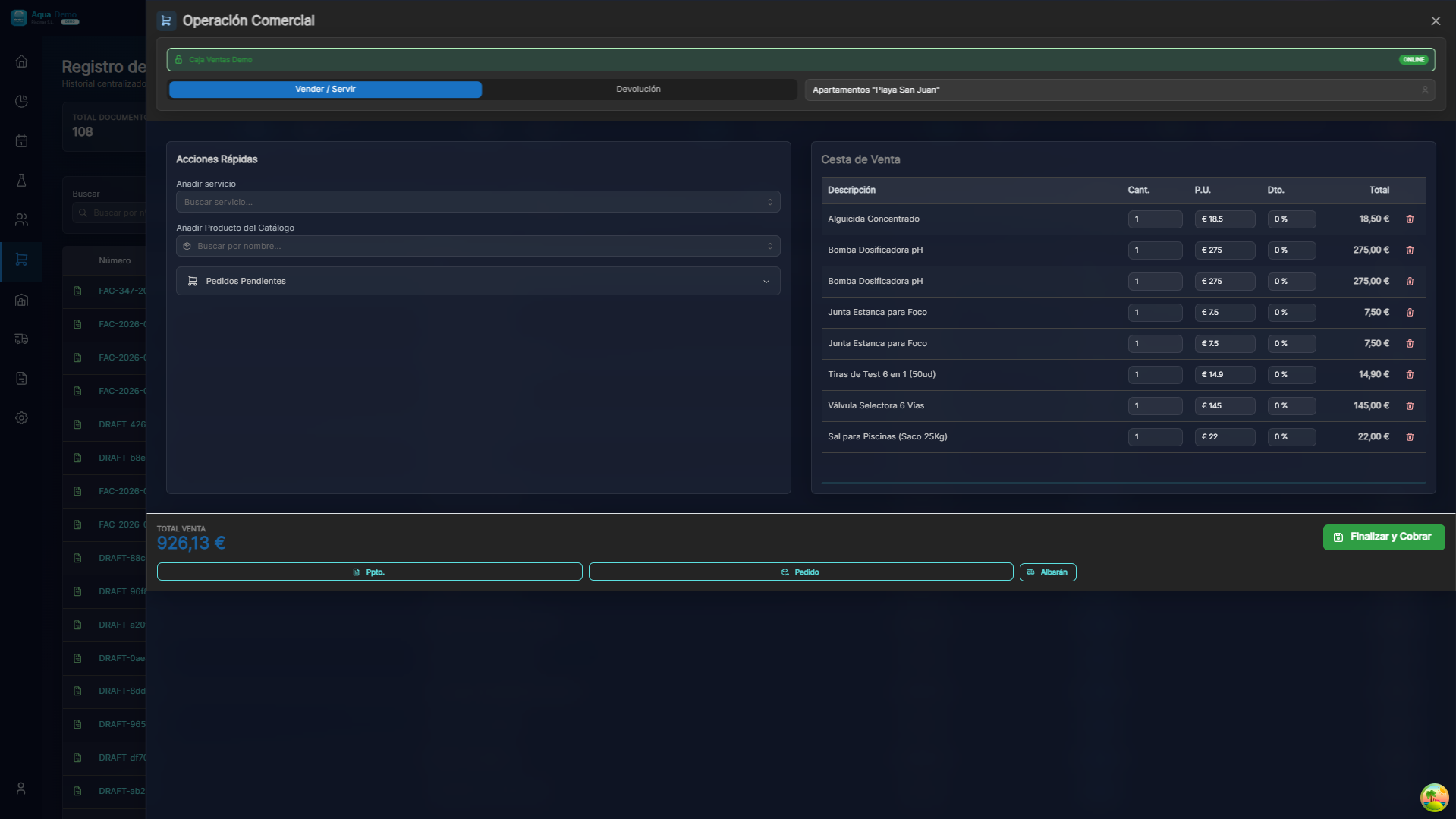
Captura con datos demo AquaDemo.Capture with AquaDemo demo data.Capture with demo manager user (AquaDemo data).
📝 STEP 2: Search and add products
Option A: Search by name
- Type in the search bar: "chlorine"
- Matching products appear
- Click on the product
Option B: Browse by categories
- Click the category (e.g. "Chemicals")
- You will see products from that category
- Click on the one you want
Option C: Barcode Scanner
- If you have a scanner, point to the barcode
- Product is added automatically
📝 STEP 3: Indicate quantity
When you click on a product, it is added to the cart.
You can change the quantity:
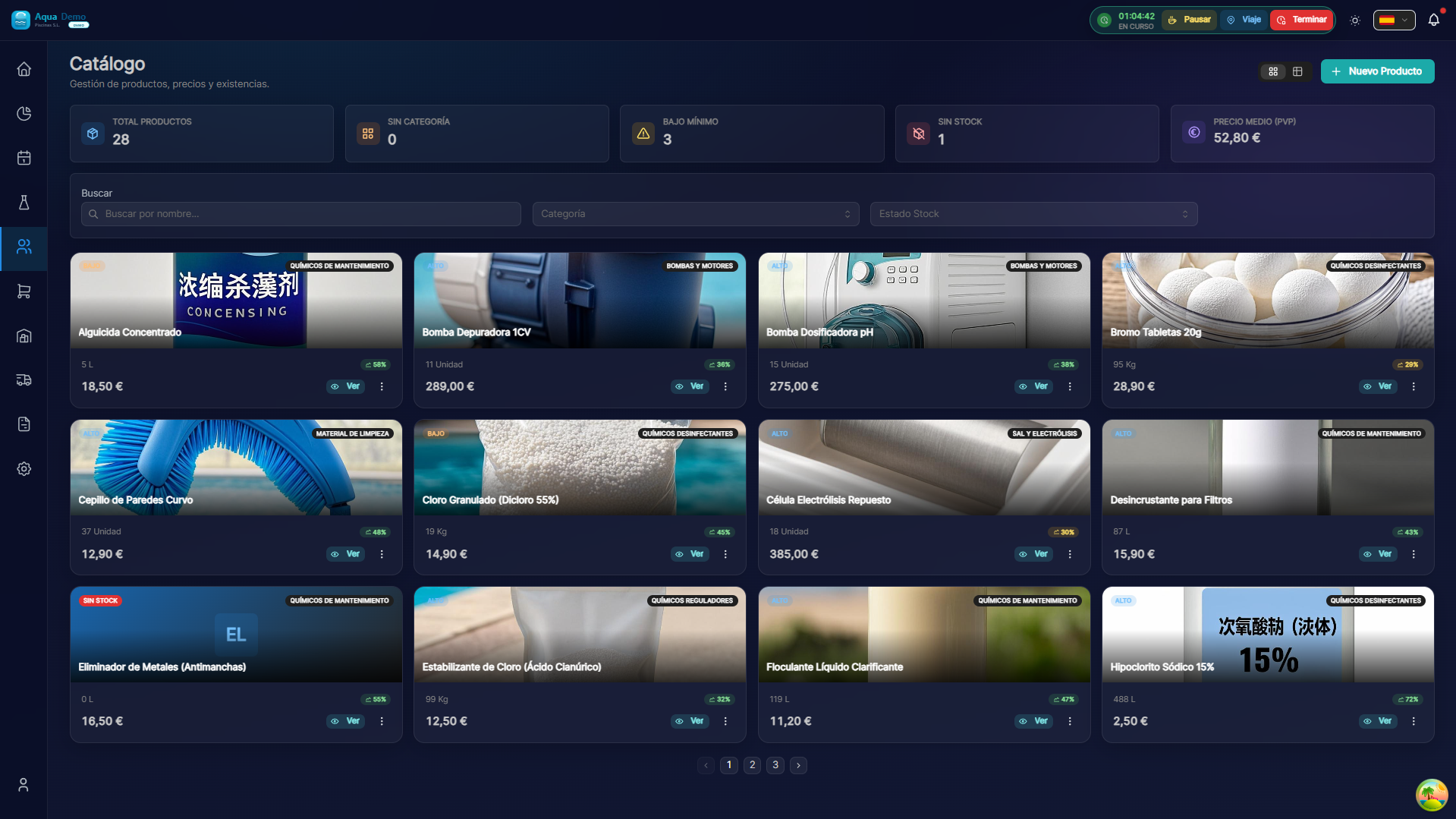
Captura con datos demo AquaDemo.Capture with AquaDemo demo data.
- − : Subtract quantity
- ****** : Add quantity
- Or write the number directly
📝 STEP 4: Apply discount (optional)
If you want to make a discount:
- On the product in the cart, press "Discount"
- Choose type:
- Percentage: "10% discount"
- Fixed: "2€ discount"
- The price is updated
📝 STEP 5: Get paid
When the cart is ready:
- Press "CASH" (large button)
- Payment screen opens
Payment methods:
| Method | How it works |
|---|---|
| Cash | Customer gives bills, you give change |
| Card | Pass dataphone, customer pays |
| Bizum | Client sends you, you confirm receipt |
| On account | You don't pay now, you sign up to collect later |
Cash collection example:
- Client gives you €30
- You put in "Received": €30
- The system calculates change: €5
- You give the customer €5 change
- You confirm sale
📝 STEP 6: Ticket/Delivery Note
When confirming the sale:
- The ticket is generated automatically
- It prints (if you have a printer configured)
- Stock is automatically discounted
📋 Useful Features
Regular customer
You can associate the sale with a customer:
- Press "👤 Customer" above
- Find the client
- Select it
- The sale is registered in your name
What it is for: Purchase history, accumulate points, billing.
Favorite products
The products you sell the most appear first for quick access.
Quick Search
- Type "clo" → "Chloro" appears
- Type "ph" → "pH-" and "pH+" appear
❓ Frequently asked questions
"What happens if I get the amount wrong?"
In the cart, click on the product and change the quantity.
"Can I remove a product from the cart?"
Yes, swipe left or press X.
"What if the customer regrets it?"
Do not confirm the sale. Press "Cancel" and start again.
"Does the stock update itself?"
Yes, when you confirm the sale, the stock automatically drops.
✅ POS Checklist
On each sale:
- [ ] I searched for the correct product
- [ ] I put the correct amount
- [ ] I applied a discount if applicable
- [ ] I verified the total with the client
- [ ] I paid correctly (cash/card)
- [ ] Give ticket/delivery slip to the customer