

💳 Payment Record
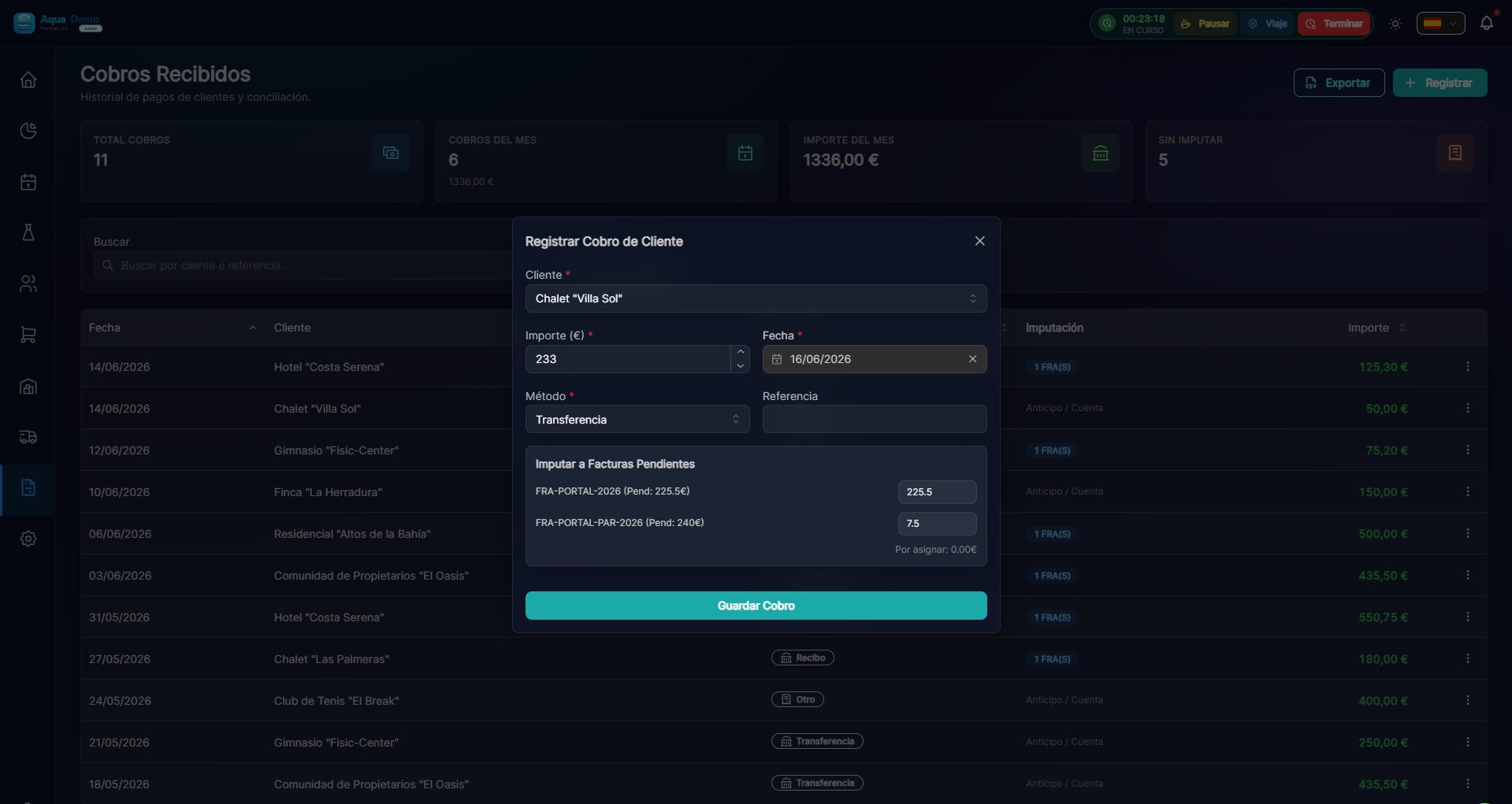
Captura con datos demo AquaDemo.Capture with AquaDemo demo data.
TL;DR
System to record manual invoice collections, whether full payment, partial payment, or with multiple payment methods. Keeps effects portfolio updated automatically.
What is it for?
When a client pays you, you need to record that payment to:
- ✅ Mark the invoice as "paid" or "partially paid"
- ✅ Keep track of the effects portfolio (what they owe you)
- ✅ Reconcile with your bank at the end of the month
- ✅ Generate accurate financial reports
🟢 Quick Payment Registration
Step 1: Access the effects portfolio
- Go to Billing → Bills Portfolio
- You will see all the invoices pending collection
- Look for the invoice that has been paid to you
Step 2: Register payment
- Click the 💰 Register Payment button on the invoice
- The payment form opens:
| Field | What to wear | Example |
|---|---|---|
| Amount | How much have they paid you | 500.00 |
| Date | When did you receive the money | 01/15/2025 |
| Method | How did they pay you | Transfer |
| Reference | Transfer number, receipt... | ES123456789 |
| Bank account | Where did the money come in? Main account |
Step 3: Save
- Click 💾Save Payment
- The system automatically updates:
- Invoice status (Paid / Pending remainder)
- Portfolio balance
- Financial Dashboard
💡 EJEMPLO VISUAL:

Factura #2025-001: 500,00 €
├─ Estado: Pendiente
└─ Vencimiento: 31/01/2025

↓ Registras pago de 500,00 €

Factura #2025-001: 500,00 €
├─ Estado: ✅ PAGADA
├─ Fecha pago: 15/01/2025
└─ Método: Transferencia
🟡 Partial Collections
Sometimes the client pays in several installments or only in part:
Practical example
- Invoice: €1,200
- Payment 1: €400 (on account)
- Payment 2: €400 (next month)
- Payment 3: €400 (final)
How to do it:
- Register the first payment of €400
- The invoice remains "Partially paid"
- When the next payments come in, repeat the process
- When reaching €1,200, it is automatically marked as paid
📊 RESUMEN DEL COBRO PARCIAL

Factura: 1.200,00 €
├─ Pago 1: 400,00 € (15/01) → Transferencia
├─ Pago 2: 400,00 € (15/02) → Transferencia
└─ Pago 3: 400,00 € (15/03) → Transferencia

Total cobrado: 1.200,00 € ✅
Pendiente: 0,00 €
🔴 Payments with Multiple Methods
The client pays part in cash and part by card:
- On the checkout screen, click ➕ Add Partial Payment
- Register each part separately:
- Payment 1: €200 in cash
- Payment 2: €300 by card
- The system adds all payments
🔄 Mass Payment Record
When you receive a remittance from the bank with many charges:
- Go to Billing → Portfolio → Bulk Shares
- Select the invoices collected (checkbox)
- Click 💰 Record selected payments
- Indicates the date and common method
- The system marks all as paid
⚠️ Only use if they are all from the same day and method
📋 Types of Payment Methods
| Method | When to use | Notes |
|---|---|---|
| Transfer | The client makes you a bank transfer | Write down the operation number |
| Domiciliation | Direct debit to account (SEPA) | It is automatically registered from the consignment |
| Cash | They pay you in cash | Requires open box if in store |
| Card | Payment with dataphone | Register from the POS automatically |
| Check | Bank slip | Write down the check number |
| Compensation | Change bill for services | Special cases |
💡 Pro Tips
💡 Always check the reference In transfers, write down the bank operation number. It will help you reconcile with the statement.
💡 Advance payments If a customer pays before receiving the invoice, create a "down payment" and then apply it to the invoice when it is generated.
💡 Collection alerts Set up notifications for overdue invoices. Go to Settings → Notifications → Expirations.
❓ Frequently Asked Questions
Can I cancel a payment registered in error? Yes, find the invoice, go to the payment history and click 🗑️ Cancel. The invoice status will return to "Pending".
What happens if I get overpaid? The excess remains as a "balance in favor" of the client. It can be applied to future invoices or returned.
How do I see all payments for a month? Go to Reports → Financial → Collections by period. You can filter by dates and export to Excel.
Is the customer notified when I register the payment? Optionally yes. When saving the payment, check "Send confirmation" to notify by email.
See also
- Payment Portfolio - Expiration management
- SEPA Remittances - Automatic collections by bank
- Dashboard Financiero - Overview
Quick Key Reference
| Action | Shortcut |
|---|---|
| New payment | Ctrl + P |
| Search invoice | Ctrl + F |
| Save | Ctrl + S |
| Cancel | Escape |