

Access
My Van (/my-stock) — stock in the technician's mobile warehouse. Replacement via transfers from office (Logistics).
📦 Stock Management (Van)
Estimated time: 7 minutes
Level: 🟢 Easy
So you never run out of material
🎯 What is van stock?
The van stock is the material that each technician carries in his vehicle to work.
Typical stock example:
Captura con datos demo AquaDemo.Capture with AquaDemo demo data.
🚦 Stock Statuses
| Color | Meaning | What to do |
|---|---|---|
| 🟢 Green | Stock OK | Nothing, you have enough |
| 🟡 Yellow | Low Stock | Request replacement soon |
| 🔴 Red | Empty or critical | Request replacement NOW |
Who decides the levels?
The boss configures:
- Minimum: When it turns yellow
- Maximum: How much can fit in the van
- Order point: When to suggest replenishment
🔄 Request Replacement
When to apply:
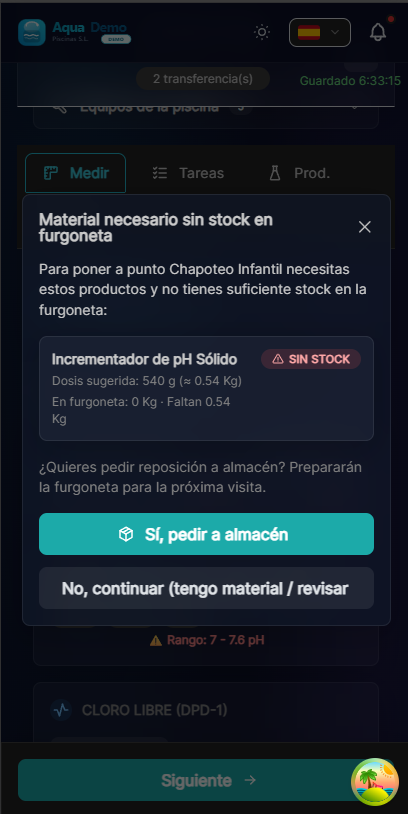
- When moving from Measurements to Tasks in the work order, if dosing detects missing van stock
- At the end of the day, if you see red/yellow products in My Van
- When the manager asks you to
- When you remember you are missing something
How to apply:
- In My Stock, press "Request Replenishment"
- Select the products you need
- Enter the quantities
- Optional: Add note ("For this week", "Urgent"...)
- Send
What happens next:
- Warehouse, manager and admin receive an in-app notification when the request is created (Requested status)
- They prepare material at the central warehouse
- They ship the transfer to your van (you get Material shipped notification)
- Confirm receipt in My Van when you collect the material
📥 Confirm receipt of material
When you receive new material:
- The boss marks in the system "Sent"
- You receive notification in the app
- Go to My Stock → Received
- You check that everything is correct
- You confirm receipt
⚠️ Always check
If something is missing or broken, please indicate it. Don't confirm blindly.
📝 Record consumption
Automatic:
When you fill out a work report and add spent products, the stock drops automatically.
Manual (if necessary):
If you use material for something outside of the parts (e.g. waste, breakage):
- My Stock → "Record manual consumption"
- Select product
- Enter quantity and reason ("Breakage", "Customer sample"...)
- Confirm
🗝️ Deliver keys or material
If you return something (keys, leftover material):
- My Stock → "Returns"
- Select what you return
- Indicate which warehouse/office
- Confirm
📊 Full flow example
Monday morning:
- Juan opens My Stock
- See that pH- is at 🔴 (empty)
- Request replacement: 10 liters
Monday afternoon: 4. The boss prepares the material 5. Send notification: "Ready for pickup"
Tuesday: 6. Juan goes through the warehouse 7. Receive the 10 liters of pH- 8. Confirm in the app 9. Your stock now shows 🟢 10 liters
❓ Frequently asked questions
"Can the boss see my stock?"
Yes, in real time. He knows what you have in the van.
"What happens if I use material and don't write it down?"
The actual stock and the system stock will not match. There will come a day when you think you have something and you don't.
"Can I have negative stock?"
No. The system does not allow you to consume more than you have.
"What if I lose material (theft, accident)?"
Tell the boss. You can make an inventory adjustment.
✅ Stock checklist
Every morning:
- [ ] I look at my stock quickly
- [ ] I identify if something is red
When the day ends:
- [ ] If something is low, I request replacement
Upon receiving material:
- [ ] I check that everything is correct
- [ ] I confirm receipt in the app
📦 Controlled stock = Work without interruptions
Never run out of material in the middle of the route.