

Access
Agenda → + Visit → modal Schedule Visit → Create Visit (or Create Recurrence if you activate repetition). Fixed routes: see Master Routes.
📝 Schedule Visits
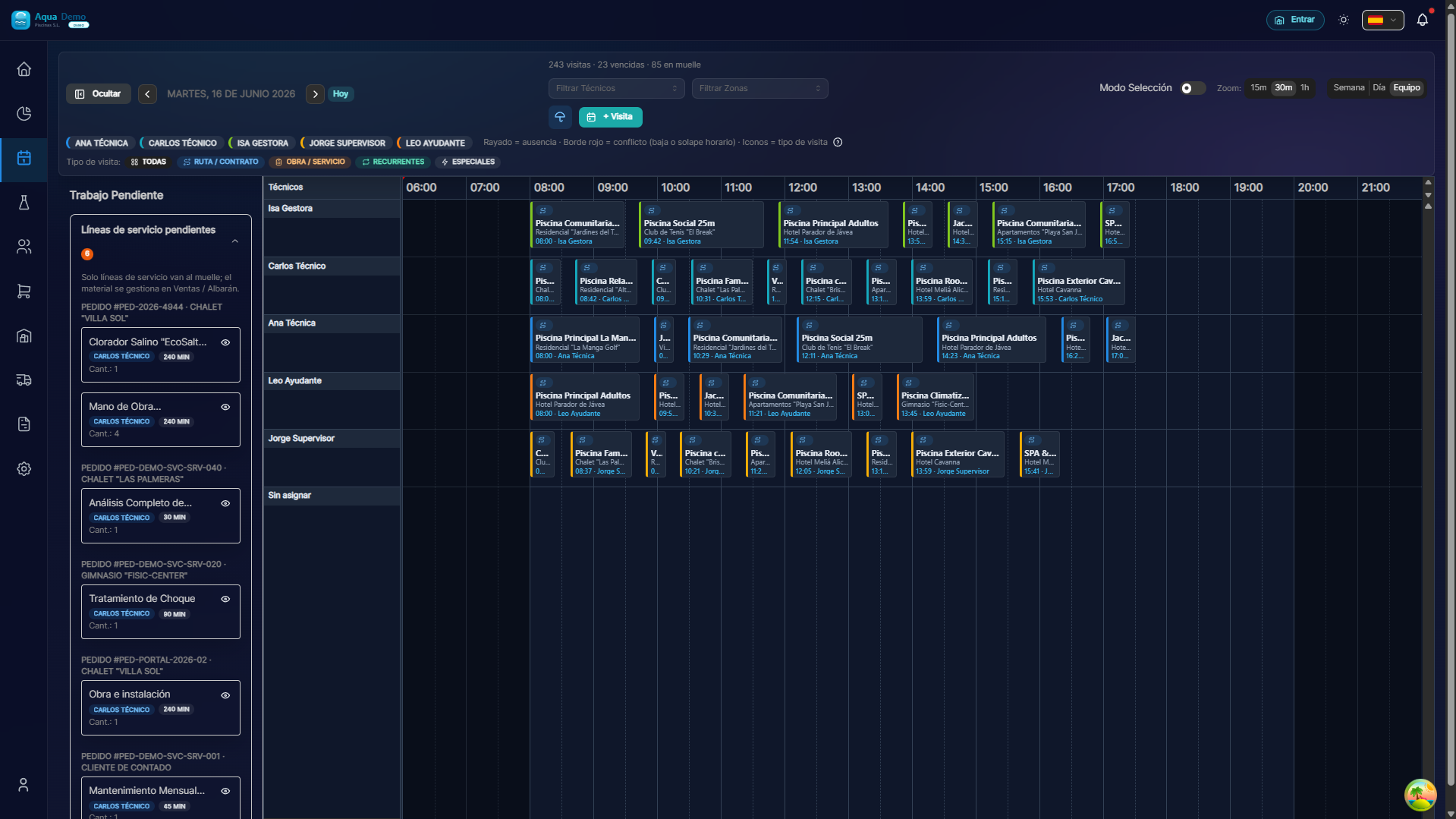
Captura con datos demo AquaDemo.Capture with AquaDemo demo data.
Estimated time: 8 minutes
Level: 🟢 Easy
You will use it several times a week
🎯 What is scheduling a visit?
Schedule a visit = Decide that a technician will come to a pool on a specific date and time.
It's like saying: "On Monday the 15th at 10:00, Juan will go to the Hotel La Palmera."
📝 STEP 1: Create a new visit
Option A: From the calendar (fastest)
- Go to Planning → Calendar
- Click on the day and time where you want the visit
- A form opens
Option B: "New Visit" Button
- At the top right of the calendar press "+ New Visit"
- The same form opens
📝 STEP 2: Fill out the form
Field: Pool ⭐ (Required)
What to do:
- Write the name of the pool (or part of it)
- Suggestions appear
- Select the correct one
Example:
You type "Palmera" → "Hotel La Palmera - Main Pool" appears → You select it
💡 Can't find the pool?
Make sure it is registered in Clients → Pools.
Field: Date ⭐ (Required)
What to enter: The day the visit will take place.
How:
- Drop-down calendar
- Or write directly: "01/15/2025"
Field: Time ⭐ (Required)
What to enter: The start time.
Examples:
- ✅ "10:00" (10 in the morning)
- ✅ "2:30 p.m." (2:30 p.m.)
Tip: Put round times (10:00, 10:30...) to make it easier to read on the calendar.
Field: Estimated duration
What to enter: How long will the technician take in that pool.
Typical options:
- 15 minutes (very small pool)
- 30 minutes (standard)
- 45 minutes (large)
- 60 minutes (very large or with many tasks)
Why does it matter? The calendar uses this to calculate whether more visits can fit before or after.
Field: Technician
What to put: Who will make the visit.
Dropdown:
[Seleccionar técnico ▼]
├── Juan García (🔵 Azul)
├── Pedro López (🔴 Rojo)
└── Ana Martínez (🟢 Verde)
Don't know who yet? Leave it blank. The visit will go to the Loading Dock and you will assign it later.
Field: Notes (Optional)
What to include: Anything special about this visit.
Examples:
- "Client asked to come after 11"
- "Carry extra chlorine replacement"
- "First visit, explain to the doorman"
📝 STEP 3: Save
Press "Save" or "Create Visit".
What happens now?
- If you assigned a technician → It appears on the calendar
- If you DID NOT assign a technician → Go to the Loading Dock
✏️ Modify a visit
Change date or time
Option A (drag):
- In the calendar, tap and drag the visit
- Release on the new day/time
- Ready!
Option B (edit):
- double click on the visit
- Change the date/time
- Save
Change technician
- Drag the visit to another technician's column
- Or edit and change the technician in the dropdown
Cancel a visit
- double click on the visit
- Change the status to "Cancelled"
- Optional: enter the reason ("Rain", "Customer notified...")
⚠️ Do not delete, cancel
Do not delete completed or canceled visits. This is how you keep the history.
🔄 Reschedule (change day)
Situation: The client calls you: "I can't do it tomorrow, come on Thursday."
What to do:
- Find the visit on the calendar
- Drag it to Thursday
- Or edit it and change the date
The technician will see it:
- If you have the app, it updates itself
- If you had already seen your route, you will receive notification of the change
📊 Complete example
Situation: Create visit for Hotel La Palmera.
Process:
- Calendar → Click on Monday 15, 10:00
- Pool: "Hotel La Palmera - Main"
- Date: 01/15/2025
- Time: 10:00
- Duration: 30 minutes
- Technician: "Juan García"
- Notes: "Customer asked to check the purifier"
- Save
Result:
- Appears on Juan's calendar
- Juan sees it on his mobile app
- When Juan completes the report, it is marked as done
❓ Frequently asked questions
"Can I create visits for several days at a time?"
Yes, use Master Routes for recurring visits.
"Can the technician refuse a visit?"
Not directly, but you can request a transfer to another technician.
"What happens if I schedule two visits at the same time for the same technician?"
The calendar will notify you with a warning (schedule conflict).
"Can I double a visit?"
Yes, right click → "Duplicate" or "Create similar".
✅ Visit checklist
Before saving, check:
- [ ] The pool is correct
- [ ] The date is correct
- [ ] The time is appropriate
- [ ] The technician can go (does not have another visit just before/after very far)
- [ ] Realistic duration
📝 Programming is easy
A few clicks and that's it. The technician already knows where to go.