

Access
In Agenda (/planner): activate selection mode in the control bar → mark visits → Reschedule (massive modal). Useful for rain or holidays.
🌧️ Batch Operations (Rain Mode)
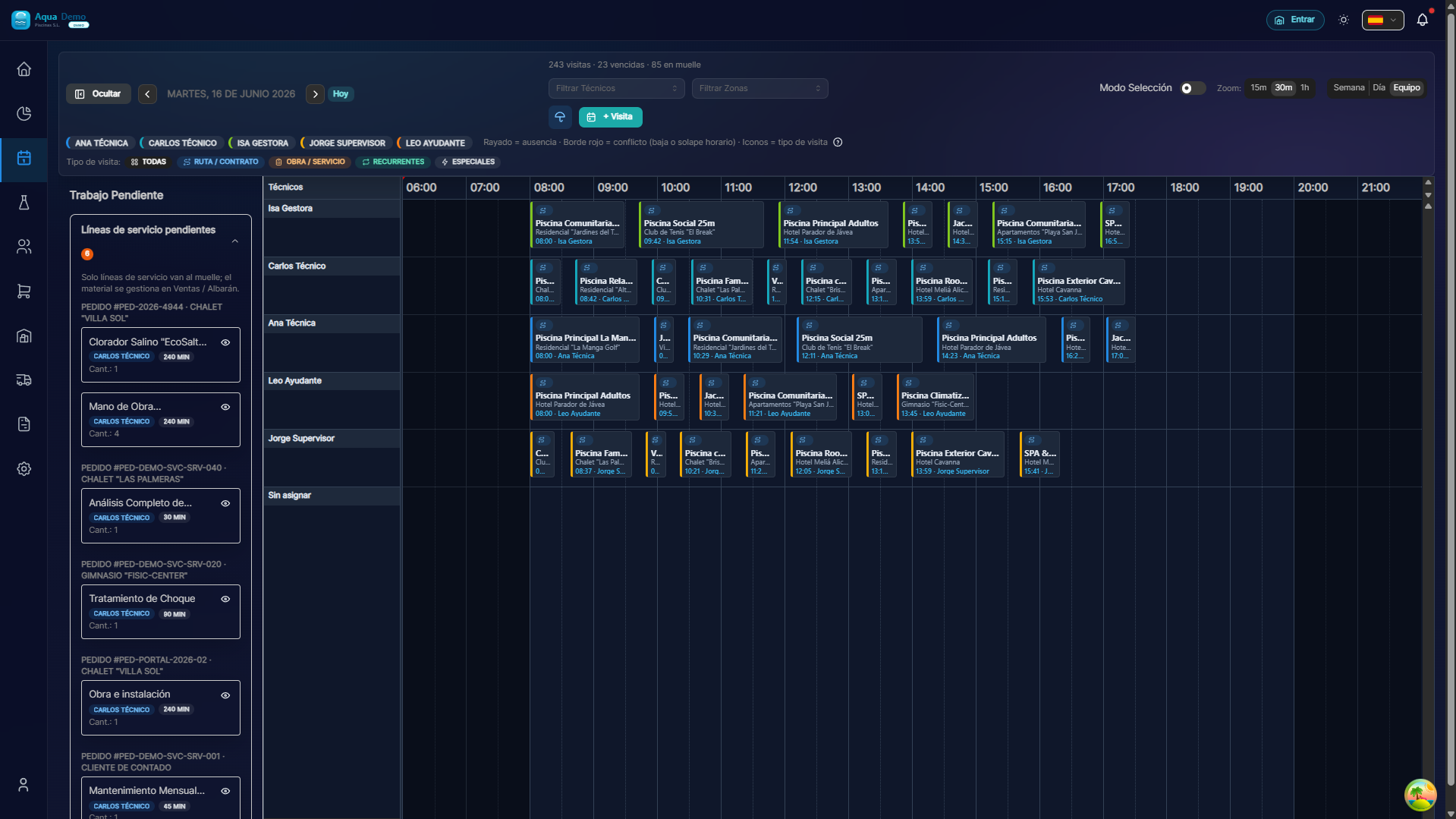
Captura con datos demo AquaDemo.Capture with AquaDemo demo data.
Estimated time: 6 minutes
Level: 🟢 Easy
It will save you on rainy days
🎯 What is rain mode?
Imagine:
Monday morning. It's pouring rain. Can't work. You have 25 visits scheduled for today. Do you cancel them one by one? That would take 30 minutes!
Solution: Rain mode (batch operations).
You select all of today's visits and suddenly reschedule them for tomorrow.
30 rescheduled visits in 3 clicks.
📝 STEP 1: Select visits
Enter selection mode
- Go to Calendar
- At the top right, press the "Selection mode" button or ☑️ icon
Select visits
Option A: One by one
- Click on each visit you want to select
Option B: All of one day
- Click on the name of the day ("Monday the 15th")
- All those from that day are selected
Option C: All of a technician
- Use filters to see only that technician
- Select all
You will see: Selected visits are marked with a check ☑️
📝 STEP 2: Choose action
Once selected, an action bar appears above:
Press "Actions" and choose:
| Action | What does it do | When to use it |
|---|---|---|
| Reschedule | Change date of all | Rain, holiday, strike... |
| Assign technician | Change the technician of all | A technician gets sick |
| Cancel | Mark as canceled | Client temporarily closes |
| Complete | Mark as done (care) | Only if they were really made |
📝 STEP 3: Confirm
If you chose "Reschedule":
- Select the new date
- Optional: change the time
- Press "Apply"
- Confirm (because it affects many visits)
Result: All selected visits are moved to the new date.
📊 Real examples
Example 1: Rain
Situation: Monday it rains. Can't work.
Process:
- Filter → See only visits from today (Monday)
- Select → All Mondays
- Actions → Reschedule
- New date → Tuesday
- Apply
Result: 20 visits rescheduled from Monday to Tuesday in 10 seconds.
Example 2: Sick Technician
Situation: Juan has become ill. His 15 visits this week need another technician.
Process:
- Filter → See only Juan's visits
- Select → All
- Actions → Assign technician
- New coach → Pedro
- Apply
Result: All of Juan's visits go to Pedro.
Example 3: Client closes in August
Situation: Hotel La Palmera closes in August. There are 12 visits scheduled.
Process:
- Filter → See only Hotel La Palmera
- Select → All of August
- Actions → Cancel
- Reason: "Customer closes vacation"
- Apply
Result: 12 visits cancelled.
💡 Tips
Tip 1: Check before applying
Mass actions affect many visits. Check that you have selected only the ones you want.
Tip 2: Notify customers
The program does not send automatic rescheduling notices. You must notify affected customers.
Tip 3: Technicians see the changes
If you reschedule, the technician will see it in their app (if they open it again).
Tip 4: You can't undo
Once the bulk action is applied, there is no "Ctrl+Z". You should manually reprogram if you make a mistake.
❓ Frequently asked questions
"Can I reschedule to different days?"
No, the massive action puts ALL the selected ones on the SAME day. If you want different days, do it in groups.
"Does the technician receive notification?"
Not automatically. You must open the app and you will see the changes.
"Can I select visits from different weeks?"
Yes, but be careful. Make sure it's what you want.
"What happens if there are already visitors on the destination day?"
They are added. There may be conflict if the technician has many. Check the calendar afterwards.
✅ Rain mode checklist
- [ ] I have filtered to see only the affected visits
- [ ] I have selected all the ones I need to change
- [ ] I have chosen the correct action (reschedule/cancel/assign)
- [ ] I have reviewed the details before applying
- [ ] I have notified affected customers (if necessary)
- [ ] I checked the calendar afterwards to verify