

Access
Role Technician → My Route (/my-route). Login: poolcontrolpro.com/login.
🗺️ My Daily Route
Estimated time: 6 minutes
Level: 🟢 Easy
What the technician sees every morning
🎯 What is "My Route"?
My Route is the main screen of the technician app. Sample:
- 📍 All the pools you must visit today
- ⏰ What time should you be at each one?
- 🗺️ How to get there
- ✅ The status of each visit (pending, in progress, done)
📱 How to get to My Route
- Go to poolcontrolpro.com/login (mobile or desktop).
- If you have multiple roles, choose Technician view in the profile.
- Menu Field Work → My Route, or bottom bar My Route on mobile.
From a visit you can open the part (/visits/{id}) with tabs: Measures → Tasks → Consumption → Finish (signature/photos at closing).
🖥️ How does it look?
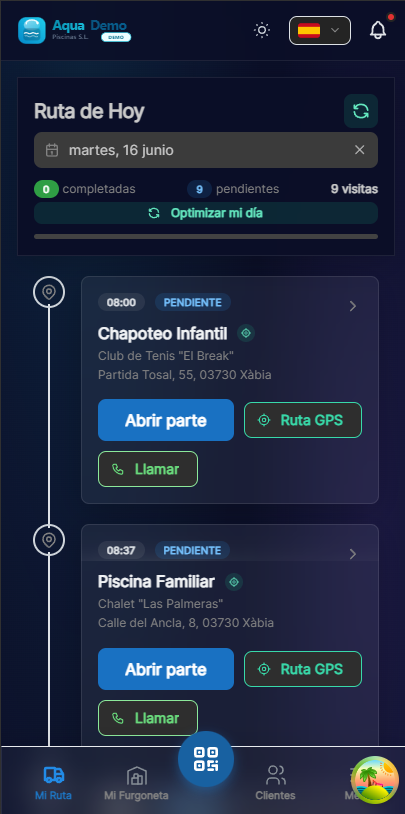
Captura con datos demo AquaDemo.Capture with AquaDemo demo data.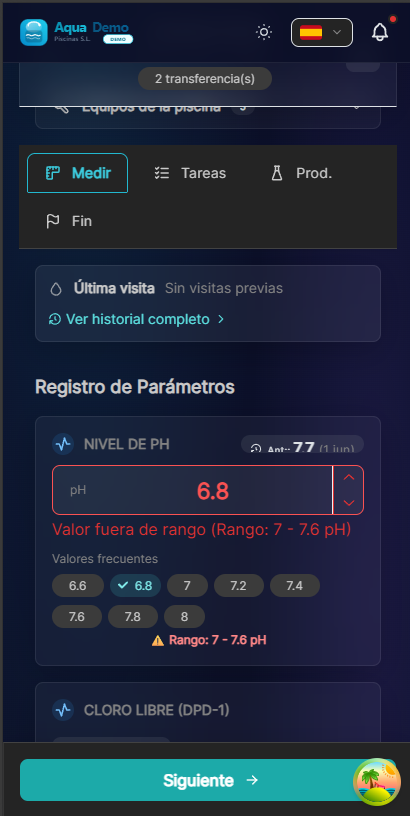
Captura con datos demo AquaDemo.Capture with AquaDemo demo data.
🔍 Elements of each visit
1. Pool icon 🏊
Indicates that it is a pool (vs another task).
2. Time ⏰
What time should the technician be there?
3. Pool name
Ex: "Hotel La Palmera - Main Pool"
4. Address 📍
Complete address to arrive.
5. Action buttons
| Button | What does it do | When to use it |
|---|---|---|
| 🗺️ How to get there | Open Google Maps with GPS | To navigate to the pool |
| ▶️ Start | The visit begins | When you get to the pool |
🗺️ Sail to the pool
How to do it:
- During your visit, press "How to get there" or 🗺️
- Google Maps (or Waze) opens
- Use voice prompts
- You get to the pool
💡 If the GPS is wrong
Notify the administrator. You can adjust the coordinates from the computer.
▶️ Start a visit
When to press "Start":
- ✅ When you physically arrive at the pool
- ✅ Before starting work
- ❌ Not from the car parked far away
- ❌ Not from home
What happens when you press "Start":
- The visit is marked as "In progress"
- Arrival time is saved
- The timer is activated
- The boss sees that you have arrived
What you will see:
⏸️ If you have to pause
Why pause?
- You have to go get material from the car
- The client asks you to wait
- There is an emergency
How to pause:
- Press "Pause"
- The counter stops
- When you return, press "Resume"
Important:
Break time does not count as "working time."
✅ End a visit
Process:
- You finish cleaning the pool
- Press "Fill Part"
- Complete the data (pH, tasks, products...)
- Press "Finish and Send"
- The visit is marked as "Completed"
What happens next:
- Disappears from the active route (or is marked green)
- The boss receives the report
- You can go to the next pool
🔄 If you can't make a visit
Option 1: Request transfer
- During the visit, press "Transfer"
- Write the reason: "Medical appointment"
- Suggest another technician (optional)
- Send
- Wait for the boss to approve
Option 2: Call the boss
If it is urgent, call directly.
📅 See other dates
By default you see today, but you can change:
- At the top, press date
- Select another day on the calendar
- You see the visits of that day
What is it for:
- See what's on tomorrow
- Review past visits
- Prepare for the week
❓ Frequently asked questions
"Why don't I see any visitors?"
Possible causes:
- The boss has not assigned you work yet
- You are looking at the wrong day (change the date)
- There is a synchronization problem (pull down to refresh)
"Can I see yesterday's visit?"
Yes, the date changes. Past visits are saved.
"What happens if I'm late?"
The system registers it, but nothing happens. Try to let the client know if it is too late.
"Does the boss see where I am?"
Only when you click "Start" (to confirm you are in the pool).
✅ Technician's checklist
At the start of the day:
- [ ] I open the app and see today's visits
- [ ] I check that I have material for everyone
- [ ] I plan the route (even if it is already ordered)
In each pool:
- [ ] I arrive and press "Start"
- [ ] I do the work
- [ ] Fill out the report
- [ ] Frame as completed
At the end of the day:
- [ ] All visits are completed
- [ ] If there is wifi, I wait for it to synchronize
🗺️ My Route is your guide for the day
Follow it and you'll know exactly what to do and where to go.