

🏠 Customer Dashboard
Estimated time: 5 minutes
Level: 🟢 Easy
The first screen your customers see (Portal 2.0)
🎯 What is the Dashboard?
It is the main screen of the portal (/portal/dashboard). A visual summary of everything.
The client enters and sees at a glance:
- How are my pools? (with selector if you have multiple installations)
- When is the technician coming?
- Do I have budgets pending signature?
- Are there orders in progress?
- Do I have any pending invoices?
📱 Client View
Captura con datos demo AquaDemo.Capture with AquaDemo demo data.The client enters poolcontrolpro.com/portal/login and receives a link by email. After validating, access the panel with pools, visits and invoices.
Interior portal panel
For authenticated dashboard screenshots, define WIKI_JWT_SECRET (same as production) and run pnpm wiki:screenshots to generate portal-dashboard.png.
🎨 Dashboard Elements
1. Swimming Pool Condition
Captura con datos demo AquaDemo.Capture with AquaDemo demo data.
📱 Mobile Version
On mobile it looks the same but stacked:
💡 Customization
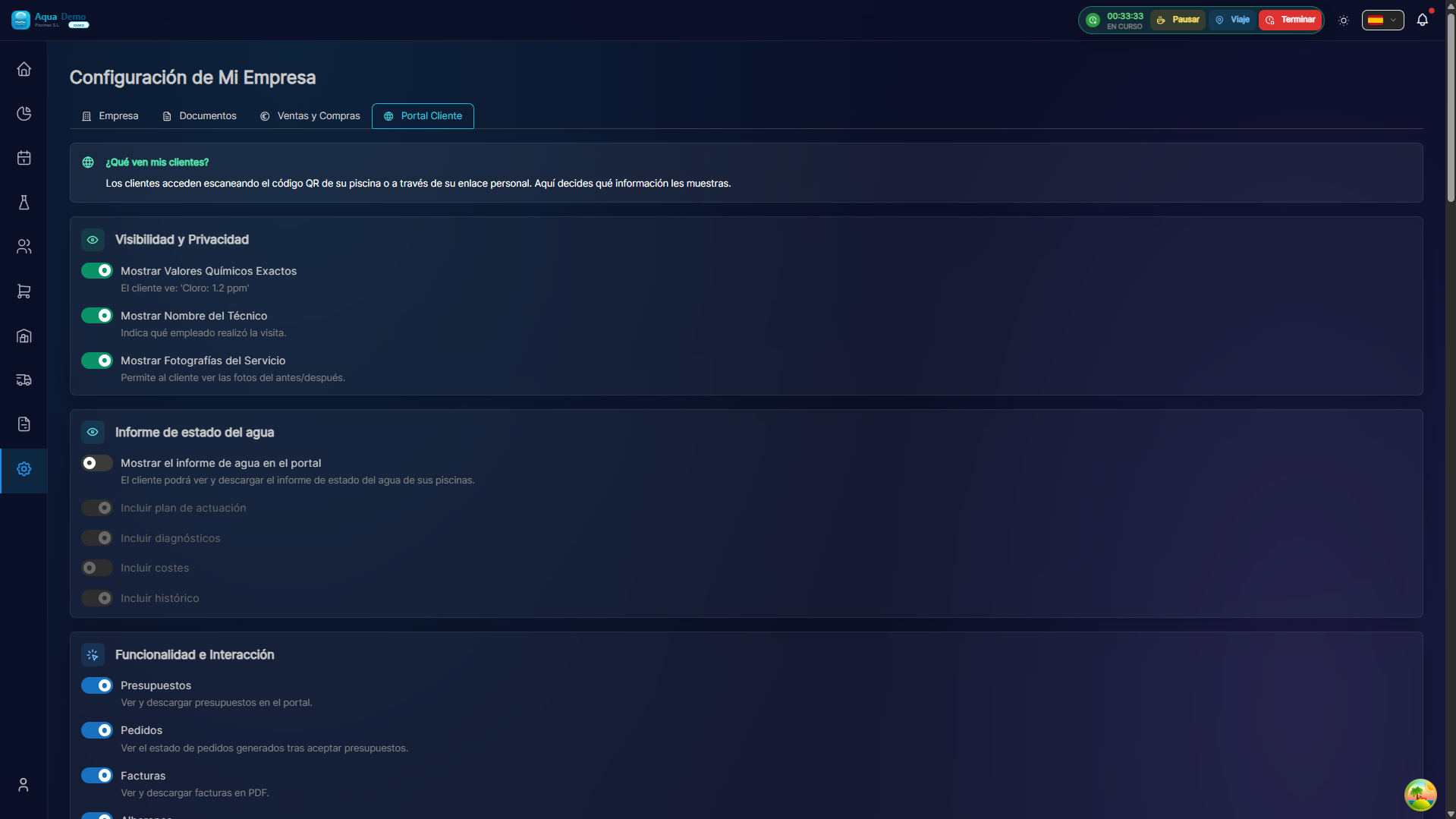
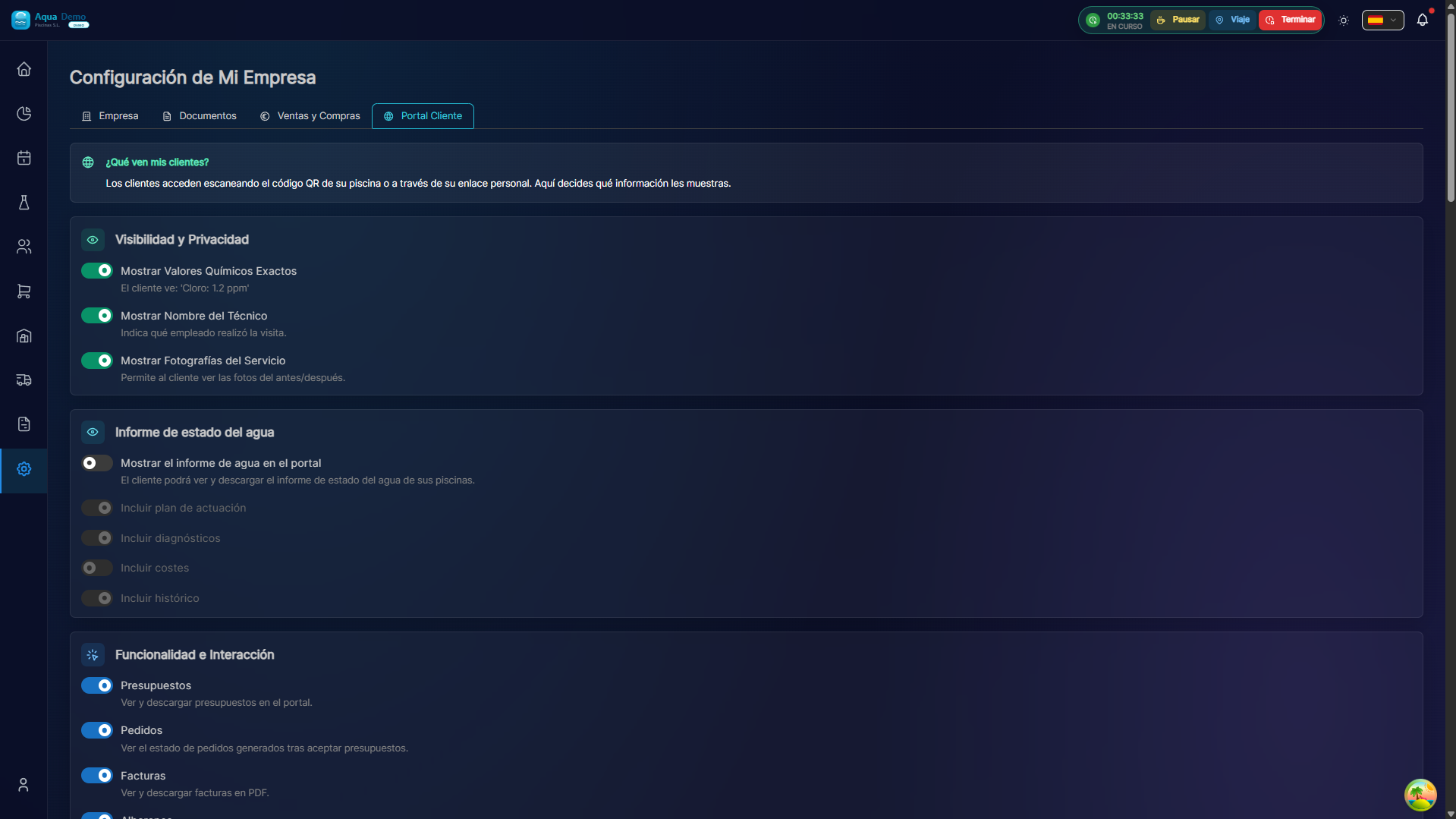
You can configure what clients see
In Settings → Company → Customer Portal:
Data Visibility
- Exact chemical values vs. "Correct/Wrong"
- Details of the assigned technician
- Photos of visits
- Sections: Budgets, Orders, Invoices, Delivery Notes
Actions
- Accept quotes (digital signature)
- Report incidents (FAB on mobile)
- Create automatic order upon acceptance
The bottom (mobile) or top (desktop) menu is dynamically generated based on these flags (GET /portal/config).
❓ Customer FAQ
"Why don't I see my pool?"
The client only sees active pools. If it is grayed out on your system, you don't see it.
"Are the parameters real time?"
No, they are from the technician's last visit.
"Can you see the history from years ago?"
It depends on your configuration. You can limit to the last 6 months.
✅ Dashboard checklist
- [ ] Logo of your company visible
- [ ] Personalized welcome message
- [ ] Pools showing latest data
- [ ] Updated scheduled visits
- [ ] Featured outstanding invoices
- [ ] Contact details of the technician
- [ ] Quick access working