

Access
It is not a separate menu: it is the pending side panel within Agenda (/planner) — overdue visits, orphans and projects. Drag to calendar to assign.
📦 Loading Dock
Estimated time: 5 minutes
Level: 🟢 Easy
Your backlog inbox
🎯 What is loading dock?
The loading dock is where visitors go who:
- ❌ They still do not have an assigned technician
- ⏳ They are pending planning
- 📋 They are new and you have to decide when to do them
Analogy: It's like your email inbox, but for work.
🏗️ How to get to the pier
- Go to Planning
- Search "Loading Dock" or "Unassigned"
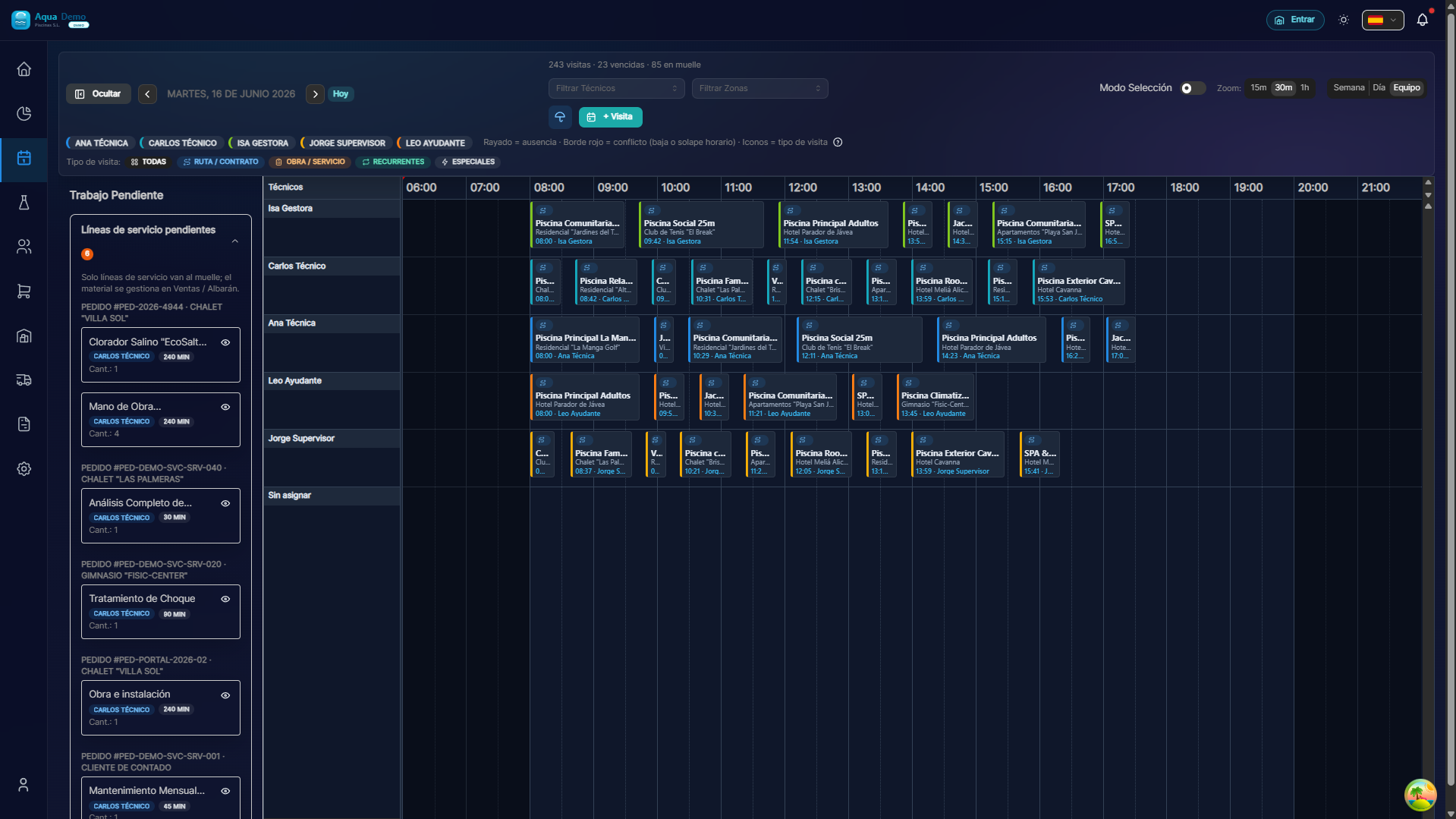
Captura con datos demo AquaDemo.Capture with AquaDemo demo data.Capture with demo manager user (AquaDemo data).
📋 Where dock visits come from
| Origin | Why come here |
|---|---|
| Operating debt | Visit PENDING whose date has already passed (not completed) |
| Created without a technician | You created the visit but did not choose who makes it |
| Transfer refused | The suggested technician cannot, we have to find another |
| Incomplete master route | The visit was generated but the technician is no longer there |
| New incident | Customer reported breakdown, visit must be planned |
| PROJECT quote accepted | Customer signed in the portal → order PENDING type PROJECT (if Create order upon acceptance is active) |
| Manual | You or a classmate put it here to decide later |
📝 Actions available
📅 Schedule
What it does: Opens the calendar to assign date and technician.
Operational debt: Overdue visits are only rescheduled by dragging them from the dock to the calendar (today or future). The calendar in past days is for consultation only.
Process:
- Press "Schedule"
- Select day and time
- Select technician
- Save
- The visit disappears from the dock and appears on the calendar
🗑️ Discard
What it does: Eliminates the visit to the dock.
When to use:
- Customer canceled
- Error, it was not necessary
- It doubled
⚠️ Be careful
Discard does not delete the visit if it already exists. Just remove it from the dock.
✏️ Edit
What it does: Modifies details of the visit.
💡 Practical uses
Use 1: Inbox
All new work goes through here first. You decide when and who does it.
Usage 2: Job Reservation
There are swimming pools to do but you still don't know when. You leave them here "on hold".
Use 3: Emergency management
A customer calls with a problem. You create a visit at the dock and schedule it when you can.
📊 Dock filters
You can filter by:
- Creation date: Most recent first
- Priority: Urgent up
- Zone: Only pools in a certain area
- Type: Incidents, normal cleanings...
❓ Frequently asked questions
"How long can a visitor stay at the dock?"
As long as you want. But check back regularly so you don't forget.
"Do the technicians see the dock?"
No. Only administrators/managers see the loading dock.
"Can I program several at the same time?"
No, you must do it one by one to ensure good planning.
"What happens if I never schedule a dock visit?"
It stays there. Nothing bad happens, but the work is not done.
✅ Dock checklist
Check the dock:
- [ ] At least once a week
- [ ] When new work comes in
- [ ] When a technician gets sick (you can do some here)
For each visit at the dock, decide:
- [ ] Is it scheduled this week?
- [ ] Is it left for later?
- [ ] Is it discarded (customer canceled)?
📦 The dock is your inbox
Review it regularly so that nothing is left undone.