

📋 Customer Management
Access
Operational → Clients and Pools · Route: /app/pool-control/clients · Button: New Client (permission CLIENT_CREATE).
Estimated time: 10 minutes of reading + 5 minutes of practice
Level: 🟢 Easy - Anyone can do it
At the end: You will know how to create clients and understand the types
🎯 What are you going to learn?
In this guide:
- ✅ How to create a new client step by step
- ✅ What data to put in each field
- ✅ Differences between types of client
- ✅ How to find clients later
- ✅ How to edit or deactivate a client
📝 STEP 1: Enter the Clients section
Where is it?
- Operational top tab (usual Admin/Manager layout).
- In the side menu: Clients and Pools.
- Also accessible from Business in some roles (Commercial).
Direct path: https://poolcontrolpro.com/app/pool-control/clients
What will you see?
When you enter, you will see a page like this:
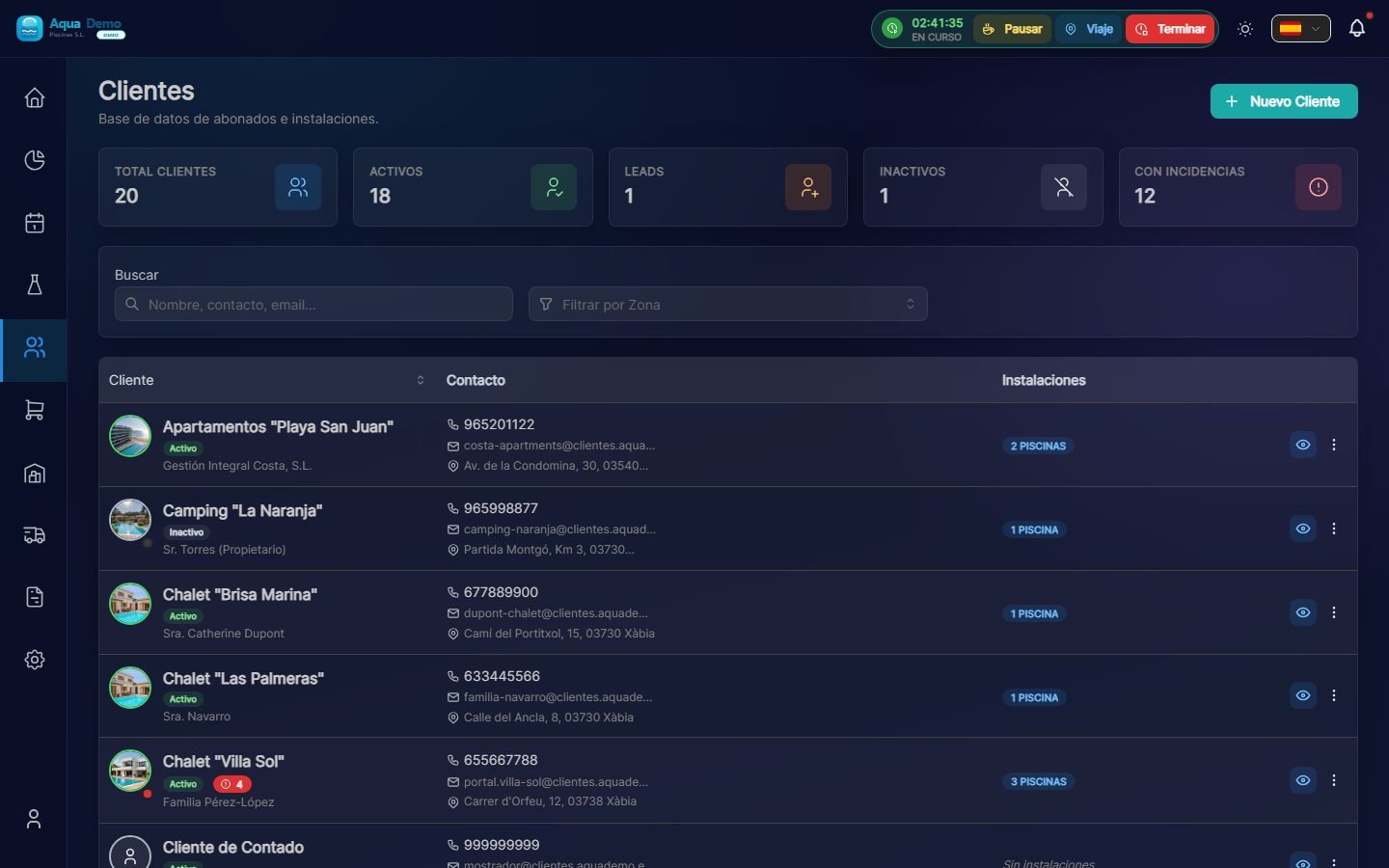
Captura con datos demo AquaDemo.Capture with AquaDemo demo data.Real capture with the demo manager user (AquaDemo company).
If this is your first time, this list will be empty. Let's fill it!
📝 STEP 2: Create a New Client
2.1 Press the "+ New Customer" button
It's at the top right, it's a blue button with a + (visible in the screenshot above).
2.2 A form opens
You will see several fields to fill out. Let's go one by one:
📋 Explanation of each field
Field: "Customer Name" ⭐ (Required)
What to enter: The full name or company name.
Correct examples:
- ✅ "Hotel La Palmera S.L."
- ✅ "Juan García Fernández" (private)
- ✅ "El Sol Community of Owners"
- ✅ "Municipal Sports Club"
Incorrect examples:
- ❌ "" (empty)
- ❌ "Hotel pool" (that's a pool, not a client)
- ❌ "Mr. Juan" (very informal, put the full name)
💡 Trick
If the name contains words like "Hotel", "Community" or "Club", PoolControl will automatically put a nice icon next to the name.
Field: "Customer Type" (Required)
Options:
| Option | Meaning | When to choose it |
|---|---|---|
| Active 🟢 | Client you are serving | You already have a contract and you are going to clean their pools |
| Lead 🟠 | Potential client | He has asked you for a quote but has not yet hired |
| Inactive ⚫ | You no longer serve him | The contract ended, he did not pay, he closed the business... |
Practical example:
You just stayed with the Hotel La Palmera. They told you that you start next month.
✅ Select "Active"
A community of neighbors has asked you for a price but they say that "they are going to think about it."
✅ You select "Lead" (and when you are hired, you change it to "Active")
Field: "Email" (Recommended)
What to enter: A valid contact email.
What is it for:
- To send you invoices
- For important communications
Examples:
- ✅ "recepcion@hotellapalmera.com"
- ✅ "administracion@comunidadelsol.es"
- ✅ "juangarcia@gmail.com" (individual)
⚠️ Important
If you do not enter an email, you will not be able to send invoices by mail. You will have to print them or send them by WhatsApp.
Field: "Phone" (Recommended)
What to put: A telephone number where you can contact them.
Examples:
- ✅ "912345678" (landline)
- ✅ "+34 612 345 678" (mobile with prefix)
What is it for:
- If there is a problem (key that doesn't work, loose dog...)
- To notify if the schedule changes
Field: "Tax Address"
What to enter: The address that will appear on the invoices. It may be different from where the pool is.
Example:
Hotel La Palmera is in:
- Pool address: Calle Mayor, 123 (where you are going to clean)
- Fiscal address: Avenida de la Constitución, 45, 3ºB (where they have the administrative office)
Fields to fill in:
- Street: "Avenida de la Constitución, 45, 3ºB"
- Postal Code: "28001"
- City: "Madrid"
- Province: "Madrid"
💡 Why separate tax address and pool address?
Because sometimes they are different. The Hotel has its administrative address, but the pools are elsewhere.
Field: "CIF/NIF" (Optional but recommended)
What to enter: The client's tax identification number.
Examples:
- Companies: "B12345678" (CIF)
- Individuals: "12345678A" (DNI)
What is it for:
- For invoices (legally required)
- To make contracts
📝 STEP 3: Save the Client
Once everything is filled out:
- Check that the data is correct (especially the email)
- Press the "Save" button (at the bottom)
If all goes well:
- You will see a green message: "Client created successfully"
- You will return to the client list
- Your new client will appear in the list
If error occurs:
- Check the fields marked in red
- You are probably missing the name (it is mandatory)
🔍 STEP 4: Find a Client (after)
When you have many clients, you will need to search for them. There are several ways:
Way 1: Search Bar
- At the top of the list there is a field that says "Search for customer..."
- Write the name (or part of it)
- The list is automatically filtered
Example:
You type "Palmera" → "Hotel La Palmera" appears
Way 2: Filters
You can filter by:
- Type: See only "Assets", only "Leads", etc.
- Zone: See only clients from "Northern Zone"
✏️ STEP 5: Edit a Client
If you made a mistake or something changed (new phone, new address...):
- In the client list, click on the name of the client
- The client's complete file opens
- At the top right there is an "Edit" button (✏️)
- Modify what you need
- Press "Save"
🚫 STEP 6: Deactivate a Client (do not delete)
If a client no longer interests you (contract ended, did not pay, closed...):
❌ DO NOT delete it → You lose the history of invoices and visits.
✅ Yes, disable it:
- Enter the client file
- Press "Edit"
- Change the Type to "Inactive"
- Save
What happens when deactivating?
- Disappears from the normal list (but you can see it by filtering)
- Does not appear in the calendar to plan
- No invoices are generated
- BUT you keep all the history in case you need it
💡 What if he hires me again?
Simply edit it and make it "Active" again. It's that easy!
📊 Complete Example: Customer Registration
Scenario: You have arranged to stay at the Hotel La Palmera. You start next month.
Data they have given you:
- Name: Hotel La Palmera S.L.
- Contact: María (receptionist)
- Email: recepcion@hotellapalmera.com
- Telephone: 912345678
- Tax address: Av. Constitución 45, Madrid
- They have 2 swimming pools (one large and one for children)
- They want "All Inclusive" service
Process:
- Go to Clients → New Client
- Name: "Hotel La Palmera S.L."
- Type: "Active" 🟢
- Email: "recepcion@hotellapalmera.com"
- Telephone: "912345678"
- Tax address: Fill in all the fields
- Guards
Result:
- The client appears in the list
- You can now add its 2 pools (see following guide)
❓ Frequently asked questions
"Can I have two clients with the same name?"
Yes, but it is not recommended. If there are two "Hotel La Palmera", put something that differentiates them: "Hotel La Palmera (Madrid)" and "Hotel La Palmera (Barcelona)".
"Can I change the client type later?"
Yes, always. A Lead becomes Active when they hire you. An Active becomes Inactive if it terminates.
"What happens if I put the email wrong?"
The invoices will not arrive. You can edit it whenever you want.
"Does the client see this I'm writing?"
No. This is only for you and your team. The client does not have access to this information (except what you send them by email).
✅ Checklist: Have you created the client correctly?
- [ ] You gave him a clear and complete name
- [ ] You selected the correct type (Active/Lead/Inactive)
- [ ] You entered a valid email (for invoices)
- [ ] You provided a contact phone number
- [ ] You filled in the tax address
- [ ] You pressed "Save" and saw the success message
🎉 Congratulations!
You already know how to create clients. The next step is to add the pools.
Or if you want to go deeper into the configuration: