

Access
Operational → Reassign Visits (/transfers) — move visits between technicians/dates. Not to be confused with Logistics → Transfers (stock between warehouses).
🔄 Transfers
Estimated time: 7 minutes
Level: 🟢 Easy
When a technician cannot make a visit
🎯 What is a transfer?
A transfer is passing a visit from one technician to another.
Real example:
Juan is assigned to visit the Hotel La Palmera on Monday. But on Monday Juan has a doctor's appointment. Juan requests to transfer the visit to Pedro. The administrator approves. Now Pedro goes to the Hotel La Palmera.
🏗️ Types of transfer
Type 1: Technical requests (most common)
- Technician sees a visit that he cannot make
- Request transfer from your app
- Admin approves or rejects it
- If approved, another technician does it
Type 2: Admin changes directly
- Admin decides to change the technician
- Edit the visit and change the technician
- You don't need approval (you're already the boss)
📱 How the technician sees it (request)
In the technician app:
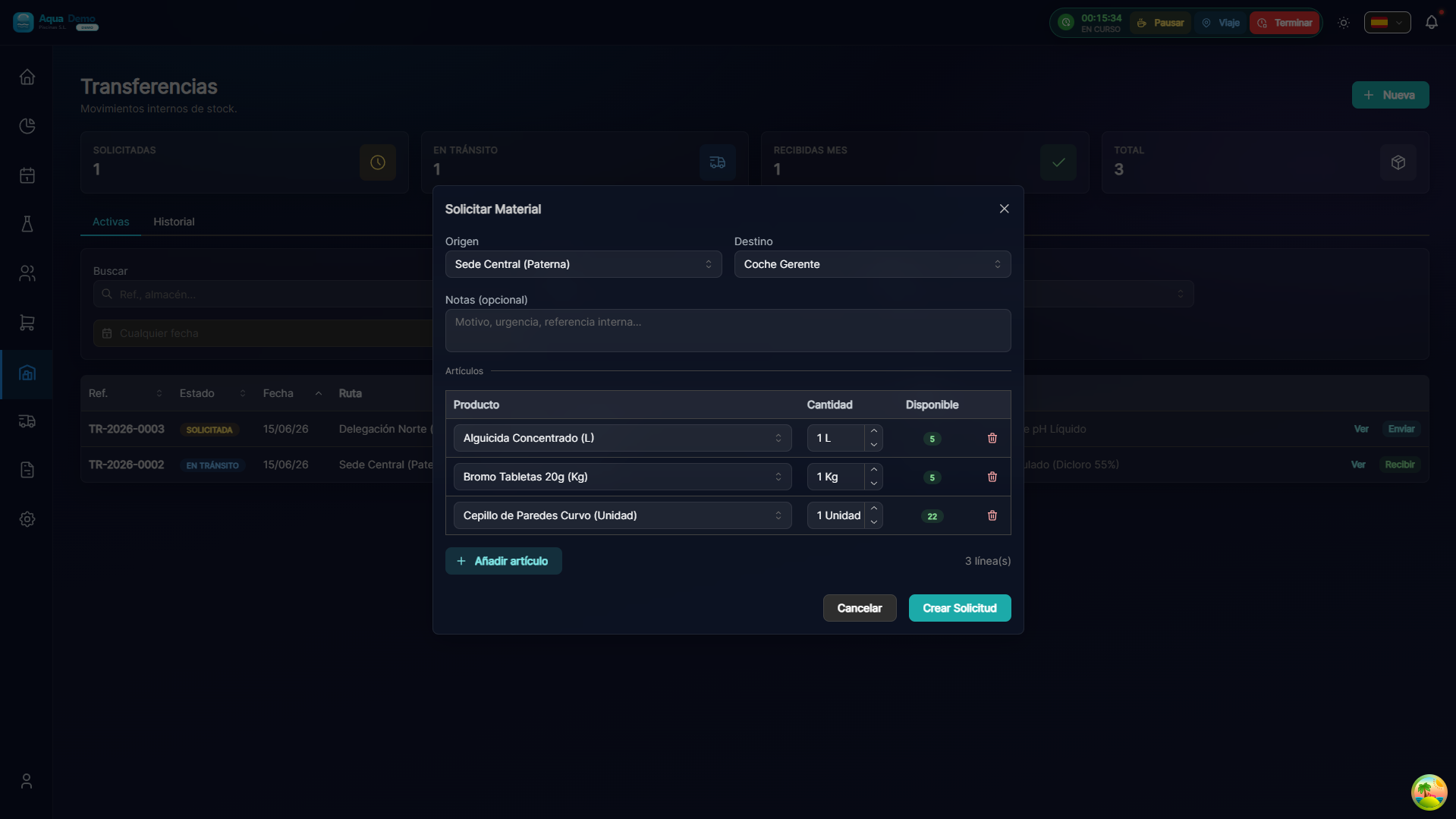
Captura con datos demo AquaDemo.Capture with AquaDemo demo data.Process:
- Technician press "Transfer"
- Write the reason: "Medical appointment"
- Select suggested technician (optional)
- Submit request
Notification: The administrator receives notification.
💻 How the administrator sees it (approve)
View pending requests
- Go to Planning → Transfers
- You will see a list of pending requests
Approve transfer
- You review the visit and the reason
- You decide who to assign it to:
- To the suggested technician
- To another different technician
- Leave at loading dock (unassigned)
- Press "Approve"
Result:
- The visit changes technician
- The new technician sees it in his app
- The original technician no longer sees it
Reject transfer
If you think the technician CAN go:
- Press "Reject"
- Write reason: "It's only an hour, you can go"
- The technician receives notification
📊 Transfer history
In Planning → Transfer History you can see:
- All transfers of the month
- Who applied, who approved
- Dates and reasons
What is it for:
- See patterns (Does Juan ask for many transfers?)
- Management control
- Resolve disputes
💡 Good practices
For technicians:
- Request in advance (not 5 minutes before)
- Give a clear reason
- Suggest a partner who can go
For administrators:
- Approve/reject fast (technician is waiting)
- Check that the new technician can go (he is not at another end)
- If you reject, explain why
❓ Frequently asked questions
"Can the technician cancel your request?"
Yes, as long as it is not approved.
"What if no one can visit?"
It is left at the loading dock and reprogrammed.
"Does the customer know that the technician changed?"
Not automatically. Let him know if it's important to him.
"Can I transfer multiple visits at once?"
Yes, it uses batch operations (rain mode).
✅ Transfer checklist
If you are a technician:
- [ ] I requested in advance
- [ ] I gave a clear reason
- [ ] I suggested a partner
If you are an admin:
- [ ] I reviewed the application quickly
- [ ] The new technician can do it (location, schedule)
- [ ] I approved or rejected with explanation
🔄 Transfers are normal
People get sick, they have appointments... The important thing is to manage it well.