

📝 Orders
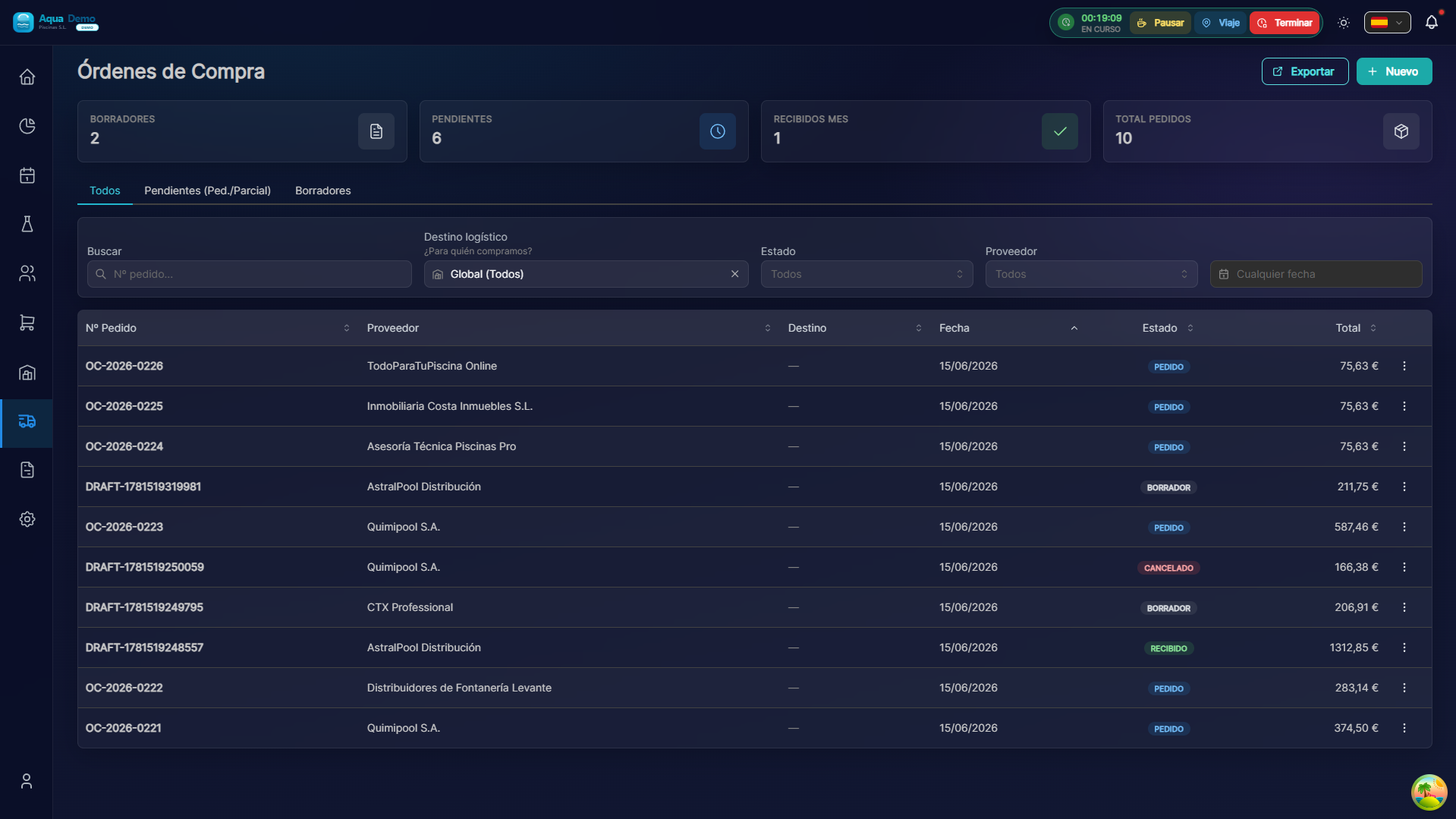
Captura con datos demo AquaDemo.Capture with AquaDemo demo data.
Estimated time: 10 minutes
Level: 🟢 Easy
The document you send to the supplier
🎯 What is an order?
An order is a formal document in which you request products from a supplier.
Example:
"Hello Químicos del Mar, I need:
- 100 kg of granulated chlorine
- 20 liters of pH-
- Delivery for Monday the 20th Thank you"
📝 STEP 1: Create an order
Where:
- Go to Purchases → Orders
- Press "New Order"
Fill:
Provider
Select from the list:
[Químicos del Mar S.L. ▼]Products
Add products one by one:
Producto:          Cantidad:   Precio:     Total:
─────────────────────────────────────────────────
Cloro granulado    100 kg      3.50€/kg    350€
pH- minorador       20 L       8.00€/L     160€
Algicida            10 L      12.00€/L     120€
─────────────────────────────────────────────────
                              TOTAL:      630€
Additional data
| Field | What to wear | Example |
|---|---|---|
| Order date | Today | 01/15/2024 |
| Expected date | When you need it | 01/20/2024 |
| Delivery address | Where to wear it | Your main warehouse |
| Notes | Special instructions | "Call before delivering" |
📧 STEP 2: Submit the order
Once created, you can:
Option A: Send by email
- Press "Send by email"
- The system generates PDF of the order
- Your email manager opens
- You send to the supplier
Option B: Send by fax/WhatsApp
- Press "Download PDF"
- You send it through the channel you use with that provider
Option C: Call
- Press "View order"
- You read the products over the phone
- Provider notes manually
🔄 Order statuses
An order goes through different states:
| Status | Meaning | Color |
|---|---|---|
| Draft | Created but not sent | ⚪ Gray |
| Pending | Sent, awaiting response | 🟡 Yellow |
| Confirmed | Supplier accepted it | 🟢 Green |
| Sent | Supplier has sent it | 🔵 Blue |
| Partial received | Only part arrived | 🟠 Orange |
| Received | Everything arrived complete | 🟢 Green |
| Cancelled | It was canceled | 🔴 Red |
Change status:
Depending on what the provider tells you, you update the status:
Proveedor: "Ok, lo envío mañana"
Tú: Cambias estado a "Confirmado"

Proveedor: "Ya está en camión"
Tú: Cambias estado a "Enviado"
📦 When the merchandise arrives
When your order arrives:
- Go to Purchases → Receptions
- Create receipt from the order
- You check what arrived
- If everything is ok, mark the order as "Received"
(See complete guide at Receipts)
✏️ Modify an order
If you haven't sent it yet:
- You can edit everything
- Add/remove products
- Change quantities
If you have already sent it:
- Contact the supplier
- Request modification by phone/email
- Update the order in the system to match
If it has already been sent to you:
- Can no longer be modified
- Wait to receive and make adjustments later
❓ Frequently asked questions
"Does the order discount stock?"
No. Stock goes down when you sell, not when you order. (Some advanced systems do do "reserved stock", but this is not the case.)
"Can I see old orders?"
Yes, everything is saved. You can search by date, provider, state...
"What if the supplier doesn't have something?"
You receive partial. Or you cancel the order and place another one with another supplier.
"Can I make recurring orders?"
Yes, set up automatic ordering (replenishment).
✅ Order checklist
Before shipping:
- [ ] Correct provider
- [ ] Correct products and quantities
- [ ] Updated prices
- [ ] Reasonable delivery date
- [ ] Correct delivery address
After sending:
- [ ] I changed status to "Pending"
- [ ] I waited for confirmation from the supplier
- [ ] When I arrive, I will receive