

Access
My Route → start visit, or route /app/pool-control/visits/{visitId}. Four tabs in code: Measurements, Tasks, Consumption, Finish.
📋 Working Part (4 Step Wizard)
Estimated time: 10 minutes
Level: 🟢 Easy
The most important thing: record the work done
🎯 What is the work report?
The work report is the document you fill out every time you clean a pool. Includes:
- 📊 Water measurements (pH, chlorine...)
- ✅ Tasks performed (pool cleaner, skimmer...)
- 📦 Spent products
- 📝 Observations and photos
What is it for:
- The boss knows what you have done
- The client sees that you have gone
- The corresponding amount is invoiced
📱 How to get to the part
- You are in My Route (icon 🗺️)
- Press "Start" on the current visit
- The Part opens automatically (icon 📋)
Or from the bottom menu: 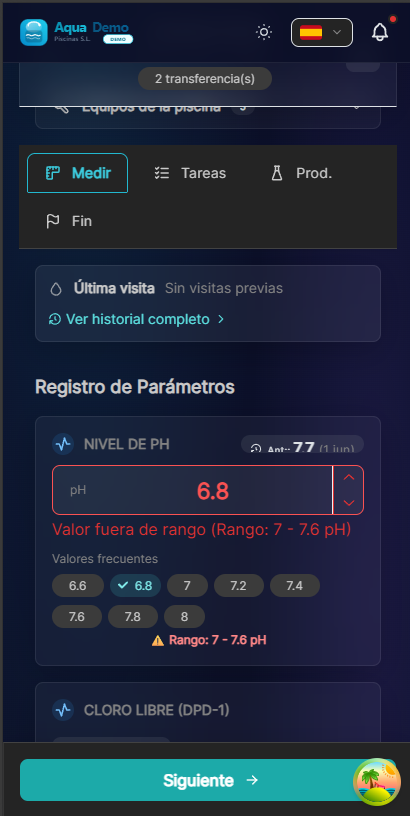
Captura con datos demo AquaDemo.Capture with AquaDemo demo data.
STEP 1: Measure Parameters 📊
What to do?
Take the water values with your measuring devices.
Fields to fill in:
| Parameter | What to measure | Typical value | Example |
|---|---|---|---|
| pH | Water acidity | 7.2 - 7.6 | "7.4" |
| Free chlorine | Disinfectant | 0.5 - 1.5ppm | "1.0" |
| Temperature | Degrees of water | According to season | "24°C" |
How to fill:
- Wet the pH meter in water
- Wait for it to stabilize
- Read the value (ex: 7.4)
- Write in the app: 7.4
- Repeat with chlorine
Previous values:
The app shows the values of the previous visit:
pH: [7.4] ← Anterior: 7.2This helps you see if much has changed.
⚠️ If something is wrong:
If the pH is too high or too low, the app can warn you:
⚠️ pH: 8.2 (ALTO) - Recomendado: 7.2-7.6Note in observations if you have had to adjust it.
Dosing and stock alert (when applicable)
If your company has the chemical calculator enabled:
- When you tap Next from Measurements, dosing suggestions are calculated from your readings.
- If your van does not have enough stock for a required product, an alert lists references and missing quantities.
- You can request replenishment from warehouse (transfer request + notification to warehouse/manager) or continue if you have the material even when the system shows zero (office gets a notice to review inventory).
On the Tasks step, each dosing product shows In van or Out of stock by comparing required dose vs registered van stock.
STEP 2: Tasks Completed ✅
Operational order (important)
The screen follows the real on-site workflow:
- Top — Cleaning routine (skimmers → pump basket → vacuum → brushing → equipment check)
- Bottom — Chemical dosing (only if calculator is active and Step 1 has readings)
Apply chemistry after cleaning
A banner reminds you to dose after mechanical cleaning so product acts on filtered water.
Cleaning routine
Mark what you did:
☑️ Skimmer (clean overflow channels)
☑️ Pump basket
☑️ Vacuum (floor)
☐ Brush walls (if needed)
☑️ Check filter pump- ☑️ Checked → Done
- ☐ Empty → Not done
- Some tasks are required (*)
Chemical dosing (if applicable)
Below the routine you see the numbered dosing plan:
| Element | Meaning |
|---|---|
| Applied | Product used this visit → goes to Step 3 |
| In van / Out of stock | Dose vs your van stock |
| % executable today | Per-visit cap may leave part pending |
| Historical plan | Hint if previous visit had pending doses |
Automatic hints: backwash when water is cloudy with floc in plan; do not floc same day as backwash.
Products come from Settings → Chemistry.
Time spent:
Some apps ask you to estimate time per task. Be realistic:
- Pool cleaner: 10 min
- Surface: 5 min
- etc.
STEP 3: Product Consumption 📦
What to do?
Write down what chemicals you have used.
If you use the chemical calculator
Products you marked Applied in Step 2 (dosing) already appear here in the cart with the calculated quantity. Review, adjust if needed and confirm — you do not need to search the catalog again.
Fields:
| Product | Quantity used | Unit |
|---|---|---|
| Chlorine | 0.5 | kg |
| pH- (minor) | 0.2 | liters |
| Algaecide | 0.1 | liters |
How to fill:
- Press "Add product"
- Select the product from the list
- Enter the amount you have spent
- Optional: Select the batch (if there is batch control)
Example:
Producto: Cloro granulado
Cantidad: 0.5 kg
Lote: CL-2024-015 (opcional)
⚠️ Important according to payment method:
| Client mode | What happens with the products |
|---|---|
| All Inclusive | They are recorded for statistics, they are not billed |
| Fee + Consumption | They are recorded AND billed to the client |
| Service Only | You shouldn't use your products (use the customer's) |
💡 Be honest
Really write down what you spend. Serves for:
- Calculate if you earn money
- Know when to replenish stock
- Invoice correctly
STEP 4: Observations and Photos 📝📸
What to do?
Add extra information about the visit.
Observations (text):
Write anything relevant:
- "The water was very cloudy, I had to add double chlorine"
- "Customer asked us to come later next time"
- "Wastewater treatment plant makes strange noise, check"
- "Everything correct"
Photos:
When to take photos:
- ✅ Before and after (if it was very dirty)
- ✅ Any problem (leak, breakage...)
- ✅ Evidence of work done
- ✅ By customer request
How:
- Press "Add photo"
- Take the photo with the camera or select from gallery
- Optional: Add description
⚠️ Privacy
Don't take photos of people without permission. Focus only on the pool.
✅ Finish and Send
Last revision:
Before sending, check:
- [ ] Correct water parameters
- [ ] Marked tasks
- [ ] Targeted products
- [ ] Observations if necessary
Signatures (when closing the report):
After pressing Finish and Send, the signature modal opens:
- Technician signature — required (certifies that you performed the service).
- Customer signature — optional or required depending on Settings → Company → Digital signatures.
The signatures are saved in the report and appear in the PDF of the work report.
Send:
- Draw your signature (and that of the client if applicable).
- Confirm and wait "Sent successfully".
- If there is no internet, it is saved and will be sent later.
What happens next:
- The visit is marked as Completed
- Return to My Route
- You can go to the next pool
💡 Practical tips
Tip 1: Auto-save
The app automatically saves every 30 seconds. If it closes, you don't lose everything.
Tip 2: Complete in the pool
Fill out the form THERE, don't wait to get to the car or home. You forget the data.
Tip 3: Photos in good light
If you take photos, do it in natural light so it can be seen well.
Tip 4: Be brief in observations
Don't write novels. The essentials: "Everything OK" or "Problem with X, notify customer."
❓ Frequently asked questions
"What if I forget to measure the pH?"
You can put "Not measured" or measure it again. Don't invent values.
"Can I edit an already sent report?"
It depends on the configuration. Normally not, let the boss know if there is an error.
"What happens if I don't put the products?"
It remains unregistered. Then you will not know how much you spent nor will it be billed correctly.
"Does the client see this part?"
Depends. Some clients have a portal and see it. If not, only the boss sees it.
✅ Report checklist
- [ ] I measured pH and chlorine correctly
- [ ] I marked all the tasks I did
- [ ] I wrote down the products I spent
- [ ] I put comments if there was something important
- [ ] I took photos if necessary
- [ ] Press "Finish and Send"
- [ ] I waited for shipping confirmation
📋 The report is proof of the work
Without part, there is no record. With part, everything is documented.