

📍 Système GPS
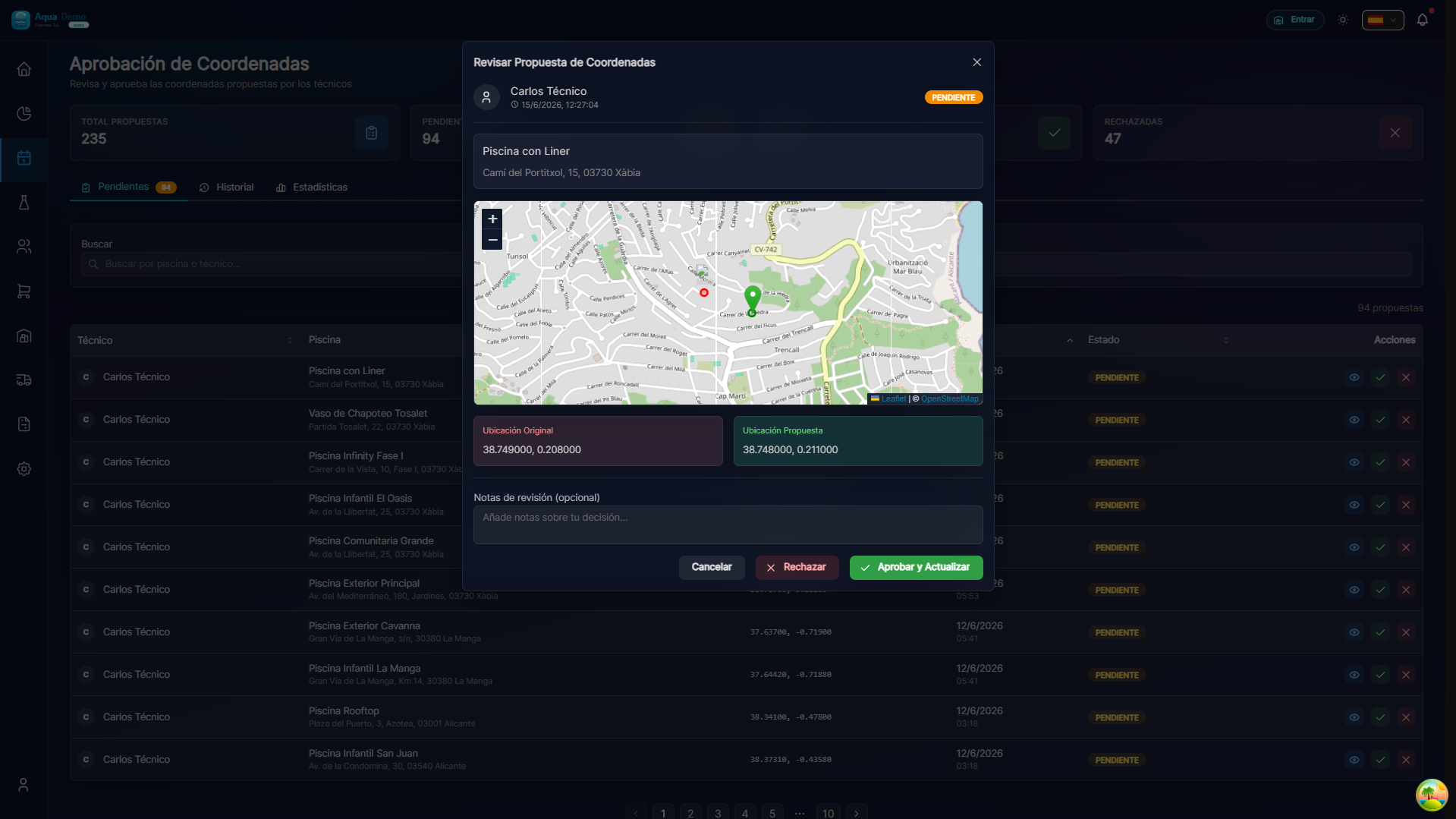
::: infos Accès Bureau : carte de pool (carte lors de la création/modification) · Opérationnel → Coord. En attente (/planning/coordinate-proposals) to approve the technician's proposals. :::
Estimated time: 8 minutes of reading
Level: 🟢 Easy
Importance: ⭐⭐⭐ High - Save time and money
🎯 Why is GPS important?
The problem without GPS:
Your technician Juan has to go to "El Sol Urbanization, Block 3". You arrive at the urbanization... and there are 20 identical blocks. Ask a neighbor, walk around, waste 15 minutes.
15 minutes × 8 pools a day = 2 hours lost
2 hours × €20/hour = €40 lost every day
The GPS solution:
Juan opens the app, presses "Browse" and the phone tells him: "Turn right, the pool is behind Block 3, next to the playground"
It arrives exactly, without wasting time.
Conclusion: Accurate GPS = Time Saved = Money Earned
🏗️ How the system works
For the administrator (office):
- In the pool tab, you adjust latitude/longitude on the map (modal when creating or Edit Data).
- Guards — the technician will see View on Map (Exact GPS) if there are coordinates.
For the technician (field):
- In the visit or file, you can propose coordinates (map + optional photo) if the pin is wrong.
- The office reviews in Coord. Pending and approve or reject.
Day-by-day navigation:
- My Route → visit → link View on Map / external apps (Google Maps, Waze).
- Also Scan QR in the pool to open the report.
📝 STEP 1: Enter the pool (office)
- Operational → Clients and Pools → client → Facilities tab.
- Tap pool name (pool tab).
- In the New Pool / Edit Data modal, use the built-in map for the pin.
📝 STEP 2: Open the map
Find the "GPS Coordinates" field and press the map 🗺️ or "Select on map" button.
A window will open with an interactive map.
📝 STEP 3: Find the location
Option A: Search by address (recommended)
- In the map search bar, type the address
- Press "Search" or Enter
- The map will move to that address
Example:
You write: "Calle Mayor 123, Madrid" The map shows that address
Option B: Move the map manually
- Drag the map with the mouse
- Zoom with the mouse wheel (or + - buttons)
- Visually search for the pool
📝 STEP 4: Place the exact pin
This is the most important part.
Where to put the pin?
| Situation | Where to put the pin |
|---|---|
| Pool visible on satellite | Just above the pool (dark blue rectangular) |
| Indoor/covered pool | At the entrance door to the premises |
| Large urbanization | At the access door to the pool area |
| Hotel | At the entrance to the garden where the pool is |
| Private house | At the door of the house or entrance to the garden |
How to move the pin:
- You will see a red pin on the map
- Click and drag the pin to the exact location
- Release when well positioned
⚠️ BE ACCURATE!
An error of 50 meters can cause the technician to:
- Enter through the wrong door
- Go to the neighbor's pool
- Waste 10-15 minutes searching
Spend 30 seconds getting it right and you'll save hours of work.
📝 STEP 5: Confirm the coordinates
Once the pin is properly placed:
- Press the "Confirm" or "Save" button
- Coordinates are saved automatically
- You will see something like:
Latitude: 40.4168 Length: -3.7038
📝 STEP 6: Verify (optional but recommended)
Try it yourself:
- Open Google Maps on your mobile
- Enter the coordinates (copy and paste)
- Check that it leads to the correct place
Or ask the technician to check:
The first time you go, let it tell you if it arrived safely or if the pin would need to be adjusted.
📱 How the technician sees it
When the technician opens his app and sees this pool:
Captura con datos demo AquaDemo.Capture with AquaDemo demo data. By pressing "How to get there" or "🗺️":
- Open Google Maps (or Waze, or Apple Maps)
- You already have the address set
- Just follow the voice prompts
🔄 GPS Proposal System (technical)
What if you don't know exactly where it is?
Situation: A new client tells you "my pool is in the complex", but you don't know exactly which one it is.
Solution: The technician can propose the GPS from his mobile phone.
How it works:
- The technician goes to the pool (guided by the client or approximate direction)
- Open the app and enter the work report
- Press "Suggest GPS"
- The mobile saves the exact coordinates where it is
- You (admin) receive a notification
- You enter Planning → Coordinate Approval
- You check the pin on the map
- Approve or reject the proposal
Advantages:
- ✅ You don't have to go look for the pool
- ✅ The technician is on site, he knows exactly where it is
- ✅ You only validate from the computer
💡 Recommended flow for new clients
- Register the client and the pool WITHOUT GPS (or with approximate)
- The technician goes the first day
- The technician proposes exact GPS
- You approve
- Next visits, GPS is accurate
❓ Common problems
"The map does not load"
→ Check your internet connection. The map requires connection.
"I can't find the address in the search engine"
→ Try entering only the street and number, without the city. Or search for the area and navigate manually.
"The pool is new and is not on the satellite"
→ Put the pin on the nearest empty lot, or wait for the technician to suggest GPS.
"The technician says the GPS leads to the wrong place"
→ Edit the pool, open the map and move the pin. Ask the technician to confirm exactly where it is.
✅ GPS Checklist
- [ ] I entered the pool tab
- [ ] I opened the selection map
- [ ] I looked for the approximate address
- [ ] I placed the exact pin (pool or access door)
- [ ] I confirmed the coordinates
- [ ] I verified that they are correct (optional)