

👤 User Types
Who are you? Depending on your role in the company, you will see different things in PoolControl.
🎯 The 7 roles of the system
PoolControl offers 7 specialized roles (work view), each with adapted menu and dashboard:
Permits and plan
What you see on the screen also depends on permissions of the role (editable in Configuration → Roles) and the contracted plan (stock, billing, signings...). If a menu is missing, it may be by role or by module not included in your subscription.
🦎 Switch views (chameleon mode)
The same user can have more than one role (e.g. Admin + Technician). From the profile menu (top right) you can change the active view without logging out:
- As Admin you configure company and permissions.
- As a Technician you see My Route and work reports.
More detail: Cómo navegar.
| Role | Main focus |
|---|---|
| Admin | Full control and configuration |
| Manager | Strategy, planning, reports |
| Technical | Field work (My Route, parts, stock) |
| Commercial | Sales and CRM |
| Warehouse | Logistics and stock |
| Accountant | Finance and collections |
| Read only | Unedited query |
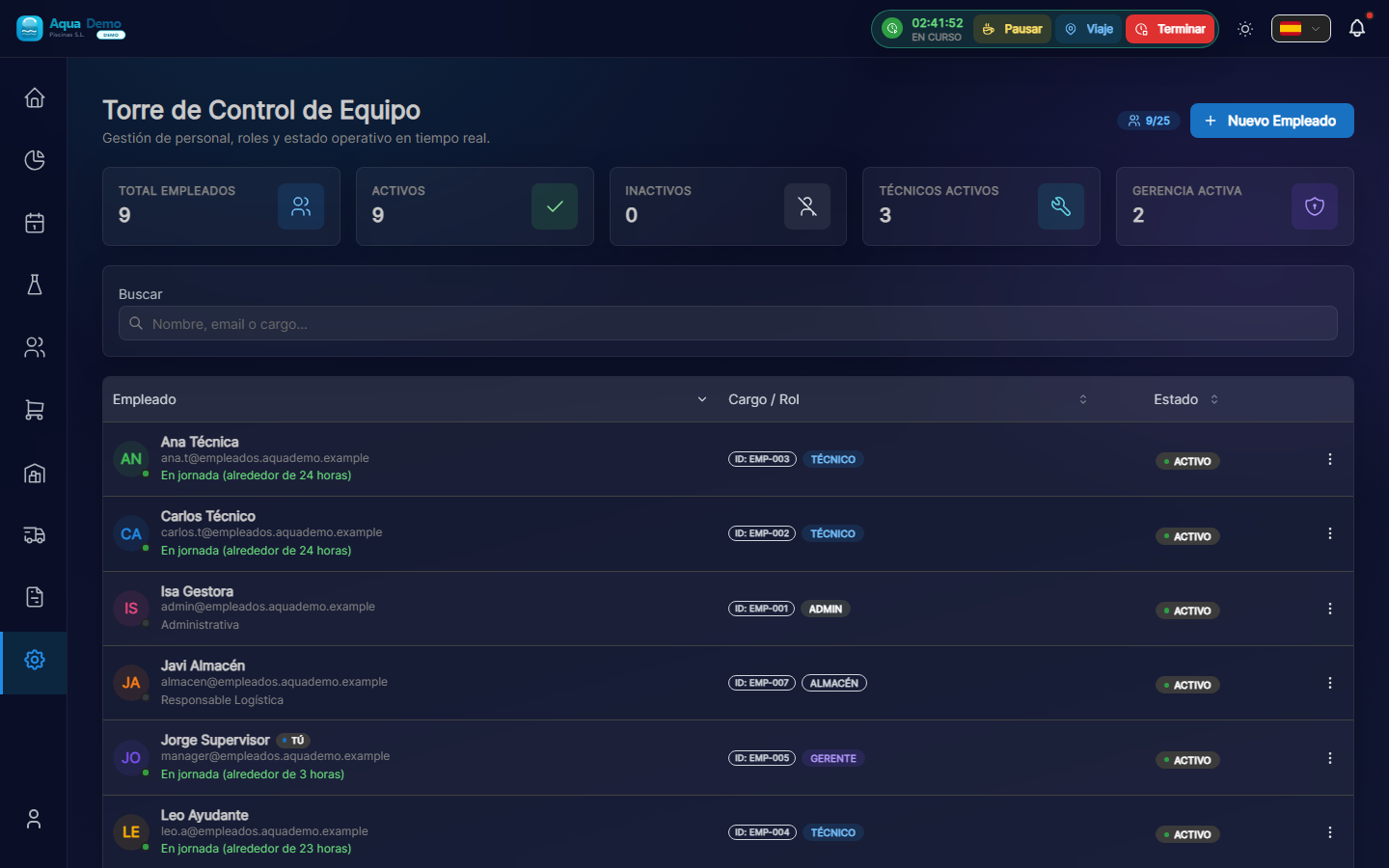
Captura con datos demo AquaDemo.Capture with AquaDemo demo data.
🔴 Admin (Administrator)
Who should be Admin?
- The owner of the company
- The person who configures the program
- Someone you trust who understands computers
What can an Admin do?
EVERYTHING. Literally everything:
| Action | Can? |
|---|---|
| Create/delete users | ✅ Yes |
| Configure roles and permissions | ✅ Yes |
| See all invoices | ✅ Yes |
| Change company details | ✅ Yes |
| Delete clients | ✅ Yes |
| See reports on everything | ✅ Yes |
| Configure warehouses | ✅ Yes |
| Access the audit log | ✅ Yes |
What should an Admin NOT do?
An Admin should not use the program for daily work. It's like being the building maintenance guy: you have the keys to everything, but it's not your job to clean the offices.
Recommendation: If you are the owner and also work "in the field", create a second user as a "Manager" or "Technician" for day-to-day work.
🟡 Manager
Who should be Manager?
- The team leader
- The person who organizes the routes
- Who is in charge of billing
- The one who answers the customer phone
What can a Manager do?
| Action | Can? |
|---|---|
| Create/edit clients | ✅ Yes |
| Create/edit pools | ✅ Yes |
| Plan routes | ✅ Yes |
| Generate invoices | ✅ Yes |
| See reports | ✅ Yes |
| See stock | ✅ Yes |
| Create new users | ❌ No |
| Change permissions | ❌ No |
| Delete the company | ❌ No |
| View audit log | ❌ No |
The golden rule
Managers can do almost all the daily work, but they cannot break anything serious or change system settings.
🟢 Technician (Field Worker)
Who should be a Technician?
- The workers who clean the pools
- Anyone who uses the mobile app
- People who just need to see their work for the day
What can a Technician see?
ONLY your things:
| Action | Can? |
|---|---|
| See YOUR route of the day | ✅ Yes |
| See the pools that are yours | ✅ Yes |
| Fill out work reports | ✅ Yes |
| See YOUR van stock | ✅ Yes |
| See pools from other technicians | ❌ No |
| View invoices | ❌ No |
| See cost prices | ❌ No |
| Edit clients | ❌ No |
| Change your route | ❌ No (only propose transfers) |
Real example
Juan is a technician. Open the app and see:
- ✅ "Today I have 8 pools"
- ✅ "First: Hotel La Palmera at 9:00"
- ✅ "Second: Casa García at 10:30"
- ❌ You don't see that Pedro (another technician) has 5 swimming pools
- ❌ You don't see how much Hotel La Palmera pays
- ❌ You cannot change your schedule
🔵 Commercial
Who should be Commercial?
- Sales agents
- Customer service staff who manage budgets
Own Dashboard
- Sales pipeline with budgets by state
- Conversion rate
- Quick access to Clients, Budgets, Sales Orders and Commercial Activity
🟠 Warehouse
Who should be Warehouse?
- Logistics manager
- Warehouse/van manager
Own Dashboard
- Critical stock in real time
- Pending transfers
- Pending receptions
- Access to Warehouses, Products, Transfers, RMA, Purchases
🟤 Accountant
Who should be an Accountant?
- Financial manager
- Collection and payment managers
Own Dashboard
- Invoices pending collection (with real data)
- Recent charges
- Pending supplier invoices
- Access to Billing, Collections, Expenses, Supplier Invoices, Reports
⚪ Read Only
Who should have Read Only?
- External auditors
- Consultants
- Partners who only need to consult
Own Dashboard
- Summary KPIs (customers, pools, employees, products)
- Query-only access to Clients, Products, Reports
📊 Quick comparison table
| Function | Admin | Manager | Technical | Commercial | Warehouse | Accountant | Read Only |
|---|---|---|---|---|---|---|---|
| Create users | ✅ | ❌ | ❌ | ❌ | ❌ | ❌ | ❌ |
| Configure system | ✅ | ❌ | ❌ | ❌ | ❌ | ❌ | ❌ |
| See financials | ✅ | ✅ | ❌ | ❌ | ❌ | ✅ | ✅(reading) |
| Manage clients | ✅ | ✅ | ❌ | ✅ | ❌ | ❌ | ✅(reading) |
| Plan routes | ✅ | ✅ | ❌ | ❌ | ❌ | ❌ | ❌ |
| Manage stock | ✅ | ✅ | ❌ | ❌ | ✅ | ❌ | ❌ |
| Budgets/Orders | ✅ | ✅ | ❌ | ✅ | ❌ | ❌ | ❌ |
| See his work | ✅ | ✅ | ✅ | ✅ | ✅ | ✅ | ✅ |
🔄 You can change roles
If someone is promoted (from technician to manager) or needs more permissions:
- Go to Settings → Equipment
- Search for the user
- Edit your profile
- Change the Role
- Save
Immediate effect: The next time you log in, you will see the new options.
⚠️ Security: The minimum access rule
Principle: Give each person only the permissions they need for their work.
Examples:
- ❌ A technician does not need to see the invoices → Do not give him access
- ❌ A manager does not need to delete users → Do not give him access
- ❌ No one should share your password → Forbidden
❓ Frequently asked questions
"I'm the only employee, what am I?"
→ You are Admin (to configure everything) and then you can use the program as Manager for daily work.
"Can I be an Admin and a Technician at the same time?"
→ Technically yes, but we recommend creating two different users. This way you keep "settings" separate from "daily work."
"My technician needs to see something he can't"
→ You can create a custom role. Go to Settings → Roles and create an intermediate one (for example "Senior Technician" with more permissions).
"Can technicians register themselves?"
→ No. Only an Admin or Manager can create new users.
🎯 Summary
- Admin = Configure and control everything
- Manager = Global strategy and management
- Technical = Field work
- Commercial = Sales and CRM
- Warehouse = Logistics and stock
- Accounting = Finance and collections
- Read Only = Unmodified query
Which one are you? If you just started: you are Admin.
🚀 Got it?
Now that you know who you are, let's see how to navigate the program.