

📋 Initial Configuration Checklist
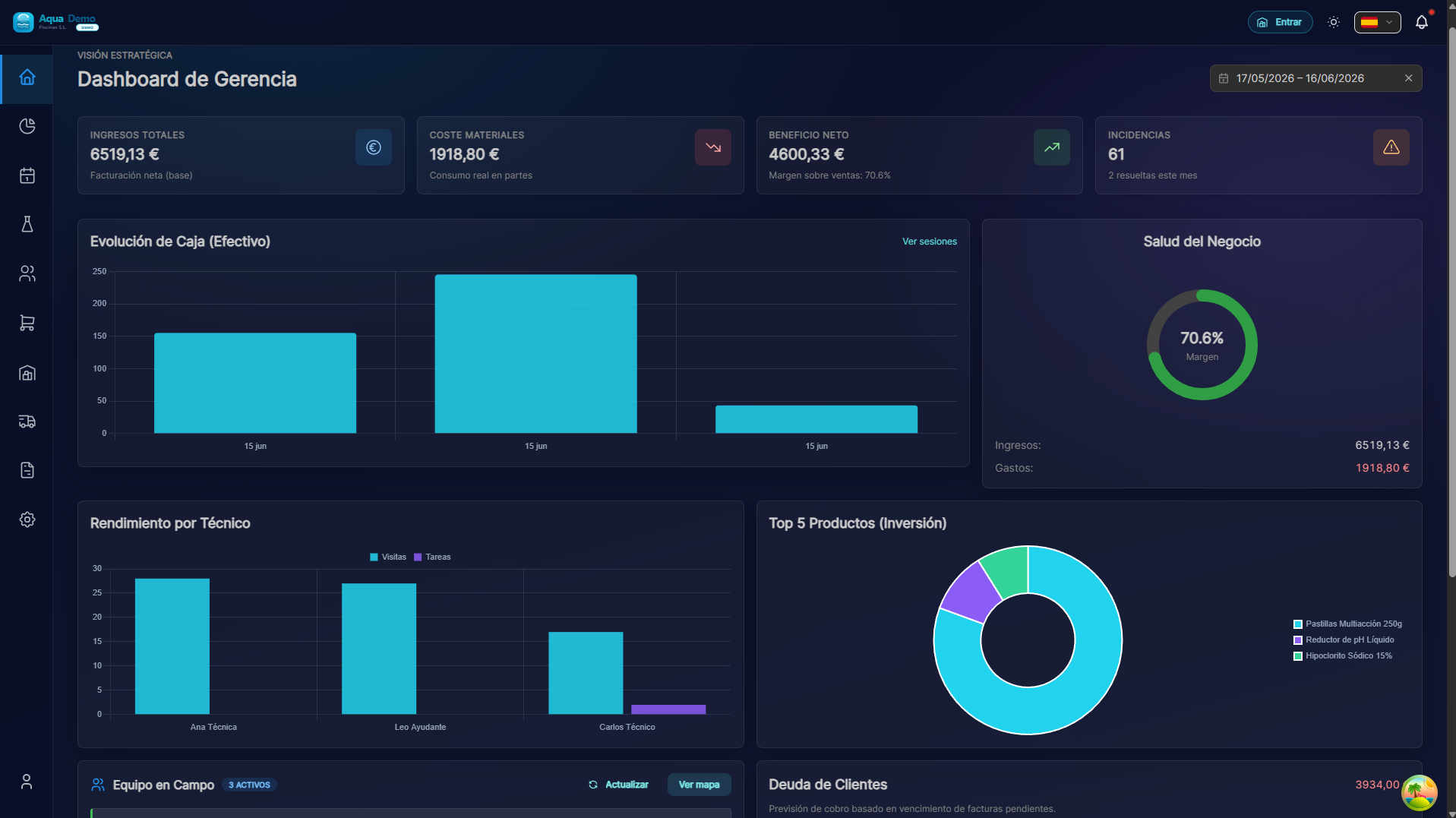
Captura con datos demo AquaDemo.Capture with AquaDemo demo data.
Estimated time: 2-4 hours (you can do it in several days)
Level: 🟢 Easy / 🟡 Medium / 🔴 Advanced
Upon completion: You will have PoolControl ready to work
🎯 What is this checklist for?
This is the master list of everything you need to do to have PoolControl fully configured.
💡 How to use this list
- [ ] The unchecked items are the ones you are missing
- Check ✅ as you complete each step
- Don't worry, you can do it in several days
- Some steps are optional (we indicate it)
📌 PHASE 1: Basic Configuration (30 min)
Before starting to use the program, configure the basics:
✅ Your company details
- [ ] Tax name of the company
- [ ] CIF/NIF
- [ ] Tax address
- [ ] Contact telephone number
- [ ] General email
- [ ] Logo (optional but recommended)
Where: System tab → Settings → Company (/settings/company)
✅ VeriFactu and invoicing (only if you invoice in Spain)
Does VeriFactu apply to me?
Only if your company is subject to Spanish electronic invoicing rules (VeriFactu). The legal obligation applies on a staggered basis from 2027. If you operate outside Spain, configure invoicing for your country; VeriFactu does not apply.
- [ ] Read sections 8 and 9 of the Beta terms (fiscal responsibility)
- [ ] Confirm with your tax advisor whether you will be obliged and from which date
- [ ] Legal name = name in the AEAT census (must match the certificate)
- [ ] Invoice series and templates configured
- [ ] Optional until census registration: .pfx certificate of the obliged issuer in Company → VeriFactu certificate
- [ ] Without a certificate: you can issue invoices with hash/QR in the app, but records are not sent to AEAT automatically
Where: System → Company (certificate) · Invoicing (series) · VeriFactu guide
Responsibility
You are the taxpayer. PoolControl Pro is a tool; it does not replace your accountant or assume fines for misconfiguration or missed legal deadlines.
✅ Your user
- [ ] Profile photo (optional)
- [ ] Secure password saved in a safe place
- [ ] Configure email notifications
Where: Click on your name (top right) → My Profile
📌 PHASE 2: Equipment and Permits (30 min)
Set up who works with you and what they can do:
✅ Roles (if you are going to have different access levels)
- [ ] Create "Technical" role (see only your stuff)
- [ ] Create "Manager" role (view and edit almost everything)
- [ ] Review what permissions each role has
Where: System → Settings → Roles
✅ Employees / Technicians
For each person who works with you:
- [ ] Full name
- [ ] Email (necessary for them to enter)
- [ ] Assigned role
- [ ] Color on the calendar (each a different color)
- [ ] Send invitation (they will receive email to activate account)
Where: System → Team
For each technician, too:
- [ ] Assign van/warehouse (if they use stock)
- [ ] Set work schedule (for calendar)
📌 PHASE 3: Infrastructure (45 min)
Set up your warehouses and boxes:
✅ Warehouses
- [ ] Create main warehouse (your central warehouse)
- [ ] Create a "van" or warehouse for each technician
- [ ] Configure address of each warehouse
Where: Logistics → Infrastructure (or System depending on layout) — warehouses and vans
✅ Cash Registers (if you sell in store)
For each physical point of sale:
- [ ] Name of the box (ex: "Main Store", "Warehouse")
- [ ] Associated warehouse (where you get products from)
- [ ] Cash manager
Where: System → Cash Registers (requires advanced permission)
📌 PHASE 4: Catalogs (1 hour)
Configure products, tasks and parameters:
✅ Product Categories
- [ ] Create categories (e.g. "Chemicals", "Cleaning", "Spare parts")
- [ ] Subcategories if necessary (e.g. "Chemicals" → "Chlorine", "pH", "Algicides")
Where: Inventory → Categories
✅ Products
For each product you use:
- [ ] Name
- [ ] Category
- [ ] Unit (kg, liters, units...)
- [ ] Cost price (what it costs you)
- [ ] Sale price (if you sell it)
- [ ] Initial stock in each warehouse
Where: Inventory → Product Catalog
💡 Trick
Start with the 10-15 products you use the most. You can add the rest little by little.
✅ Chemistry settings (if using calculator)
- [ ] Review demo catalog (if new account) and set real prices
- [ ] On each correction product: Chemistry tab (role, active %, per-visit cap)
- [ ] System → Settings → Chemistry — assign product by role
- [ ] Test in Operations → Chemical consultation and on a trial work order
Guide: Chemistry settings
✅ Parameters to Measure (in swimming pools)
- [ ] pH (mandatory)
- [ ] Free chlorine (mandatory)
- [ ] Temperature (optional but recommended)
- [ ] Others that you measure (alkalinity, hardness...)
Where: Configuration → Parameters
✅ Tasks to Do
- [ ] Pool Cleaner
- [ ] Surface (collect leaves)
- [ ] Skimmer (clean overflows)
- [ ] Brush walls
- [ ] Check purifier
- [ ] Other tasks specific to your business
Where: Settings → Tasks
📌 PHASE 5: Clients and Pools (1-2 hours)
Register your clients (you can import them if you have many):
✅ Suppliers (first of all)
For each supplier you buy from:
- [ ] Tax name
- [ ] CIF
- [ ] Address
- [ ] Telephone
- [ ] Payment terms (e.g. "Payment within 30 days")
Where: Purchases → Suppliers
✅ Clients
For each client:
- [ ] Name/Company name
- [ ] Type (Active, Lead, Inactive)
- [ ] Complete tax data
- [ ] Email (to send invoices)
- [ ] Telephone
- [ ] Tax address
- [ ] Configured payment mode
- [ ] Special discounts (if applicable)
Where: Clients → New Client
✅ Swimming pools
For each pool of each client:
- [ ] Descriptive name
- [ ] Exact address
- [ ] GPS coordinates (IMPORTANT)
- [ ] Type (Public/Private)
- [ ] Parameters to measure configured
- [ ] Configured tasks to perform
- [ ] Assigned zone (if you use zones)
Where: Client file → Pools tab
⚠️ IMPORTANT
This phase is the longest but the most important. Without well-configured clients and pools, nothing works.
📌 PHASE 6: Planning (30 min)
Configure recurring routes:
✅ Geographic Zones (optional but recommended)
- [ ] Create zones (e.g. "North Zone", "Central Zone")
- [ ] Assign pools to zones
- [ ] Define colors for each zone
Where: Clients → Areas
✅ Master Routes
For each technician and zone:
- [ ] Define frequency (ex: "Monday, Wednesday, Friday")
- [ ] Season (ex: "April to October")
- [ ] Pools included
- [ ] Approximate schedule
Where: Planning → Master Routes
📌 PHASE 7: Test the System (30 min)
Before you start using it seriously, do a test:
✅ Try as Administrator
- [ ] Create a test visit
- [ ] See it on the calendar
- [ ] Edit the visit
- [ ] Cancel the visit
✅ Try as a Technician
- [ ] Enter the app with the username of a technician
- [ ] See the route of the day
- [ ] Simulate a work report (measure pH, mark tasks)
- [ ] Verify that it is saved correctly
✅ Sync test
- [ ] Do something on your mobile (technician app)
- [ ] Verify that it appears on the computer (admin)
- [ ] Do something on the computer
- [ ] Verify that it appears on the mobile
📌 PHASE 8: First Real Day (15 min)
The day you start using it for real:
✅ In the morning
- [ ] Open cash register (if applicable)
- [ ] Check that all technicians see their routes
- [ ] Check that the technicians have material in their vans
✅ During the day
- [ ] Make sure that the technicians use the app
- [ ] Resolve doubts about how to use it
- [ ] Note problems or improvements
✅ In the afternoon
- [ ] Check that all parts have been synchronized
- [ ] Close cash register (if applicable)
- [ ] Make stock adjustments if necessary
🎉 READY! And now what?
If you have come this far and you have everything checked:
- Congratulations 🎉 PoolControl is ready to use
- Save this list - You will probably have to make some adjustments the first few days
- Tell your team - Make sure everyone knows how to use their parts
- Be patient - The first days will be adaptation
📞 Do you need help?
If any step is not clear to you:
- 📧 info@poolcontrolpro.com
- 💬 Chat within the app
🚀 Configuration completed
Remember: You don't have to do it all in one day. Take your time.
The important thing is to get started. Set up the basics and add the rest as you go.